
Microsoft Excel Posts & Guides
Apply Filter on data with Cells in worksheet Microsoft Excel
- November 2, 2016
- Posted by: SPiyush
- Category: Microsoft Excel Tips
Apply Filter on content in spreadsheet Excel 2016
See Previous Post: Using Flash Fill feature tool worksheet Microsoft Excel 2013
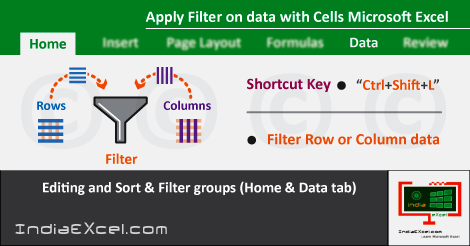
In this post, we’ll explain about, What is the use of the Filter ? And, How to Apply Filter in a workbook ? In the first place, before answering these questions; let us know the positions of the Filter button in Excel ? So, the Filter button can be find at two locations.
The Editing group of the Home tab ribbon and the Sort & Filter group of the Data tab ribbon. Inside, these two groups the Filter button is present. It has been shown with Funnel Icon. To illustrate, already we know that, what is the specific role/task of a Funnel.
Significantly, filtering is the task of a Funnel. But, only if we keep a cloth or a paper, before pouring the liquid, the impurities will get filter first. Instead, the Filter provides a path for the liquids to pass through narrow gaps, through its small pipe/tunnel.
So, for this reason, this Icon has been termed by the name of the Filter. Nevertheless, let us come to the motive of our topic. The Filter helps to easily see the necessary data; by temporarily separating and showing it, out of the enormous data. To apply a filter there are many ways.
Apply Filter on data in sheet MS Excel – continued
- Method 1
- Firstly, drag and select the data, by clicking and holding the Left Mouse Button.
- Then, select and click the Filter button to apply the Filter.
- Method 2
- Drag and select the data, by clicking and holding the Left Mouse Button.
- Further, press the Shortcut Key i.e. “Ctrl+Shift+L” to apply the Filter.
- Method 3
- Press the “Ctrl+A” key once, while the active selection is on the data.
- Next, click the Filter button or its Shortcut Key to apply the Filter.
- Method 4
- And, what if we just press the Shortcut Key without selecting the data first.
- Then, also the Filter is applied, even if we select the data or not.
Lastly, but what’s the difference? if we initially select the data, or we just apply the Filter straight away. So, the only major difference is, if the data has an empty row or an empty column; by pressing the “Ctrl+A” key, will only select the data within the empty row or column.
See Next Post: Apply Filter data Cells worksheet Microsoft Excel 2016
Author:SPiyush
Leave a Reply Cancel reply
STAY UPDATED
RECENT POSTS
File tab Backstage View buttons introduction Microsoft Excel 2016

File tab Backstage View tools MS Excel 2016 In this post,...
Add numbers addition Microsoft Excel 2016 (adding in excel)

How to Add numbers (adding numeric) MS Excel See Previous...
Using Format Painter tool button Microsoft Excel 2016

How to use Format Painter button MS Excel See Previous...
Clipboard group Cut Copy and Paste Microsoft Excel 2016
Cut Copy Paste Clipboard group MS Excel 2016 See Previous...
Description of Font group buttons tools MS Excel 2016
Overview of Font group buttons Excel 2016 See Previous Post: Clipboard...
Alignment group tools buttons Microsoft Excel 2016
Commands of Alignment group Excel 2016 See Previous Post: Font group...
Number group buttons tools Formats Microsoft Excel
Number group tools commands Excel 2016 See Previous Post: Alignment Group...
Styles group buttons Home tab Microsoft Excel 2016
Styles group tools Microsoft Excel 2016 See Previous Post: Number group buttons commands...
Cells group tools description Home tab MS Excel 2016
Cells group buttons overview Microsoft Excel See Previous Post: Styles group...
Editing group buttons Home tab Microsoft Excel 2016
Editing group commands Microsoft Excel See Previous Post: Cells group buttons...
Clipboard, Font, Alignment, Number, Styles, Cells, Editing groups Microsoft Excel
Home tab groups buttons Microsoft Excel 2016 See Previous Post: Editing...
Tables group buttons Insert Tab ribbon Microsoft Excel
Insert Tab tools of Tables group Excel 2016 See Previous...
Illustrations group buttons of Insert Tab Excel 2016
Illustrations group tools Microsoft Excel 2016 See Previous Post: Tables group buttons...
File tab Backstage View buttons introduction Microsoft Excel 2016
File tab Backstage View tools MS Excel 2016 In this post,...
Add numbers addition Microsoft Excel 2016 (adding in excel)
How to Add numbers (adding numeric) MS Excel See Previous...
Using Format Painter tool button Microsoft Excel 2016
How to use Format Painter button MS Excel See Previous...
Clipboard group Cut Copy and Paste Microsoft Excel 2016
Cut Copy Paste Clipboard group MS Excel 2016 See Previous...
Description of Font group buttons tools MS Excel 2016
Overview of Font group buttons Excel 2016 See Previous Post: Clipboard...
Alignment group tools buttons Microsoft Excel 2016
Commands of Alignment group Excel 2016 See Previous Post: Font group...
Number group buttons tools Formats Microsoft Excel
Number group tools commands Excel 2016 See Previous Post: Alignment Group...
Styles group buttons Home tab Microsoft Excel 2016
Styles group tools Microsoft Excel 2016 See Previous Post: Number group buttons commands...
Cells group tools description Home tab MS Excel 2016
Cells group buttons overview Microsoft Excel See Previous Post: Styles group...
Editing group buttons Home tab Microsoft Excel 2016
Editing group commands Microsoft Excel See Previous Post: Cells group buttons...
Clipboard, Font, Alignment, Number, Styles, Cells, Editing groups Microsoft Excel
Home tab groups buttons Microsoft Excel 2016 See Previous Post: Editing...
Tables group buttons Insert Tab ribbon Microsoft Excel
Insert Tab tools of Tables group Excel 2016 See Previous...
Illustrations group buttons of Insert Tab Excel 2016
Illustrations group tools Microsoft Excel 2016 See Previous Post: Tables group buttons...












