
Microsoft Excel Posts & Guides
Troubleshooting Excel Clipboard Error: “We Couldn’t Free Up Space”
Previous post: Mastering Data Analysis with Microsoft Excel
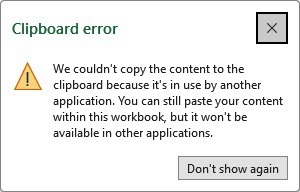
For many users relying on Microsoft Excel for data analysis and reporting within the United States, unexpected error messages can cause interruptions. One particularly disruptive issue frequently encountered is the “Clipboard error,” which often manifests when you attempt to copy or paste data.
The error message typically reads: “We couldn’t free up space on the Clipboard. Another program might be using it.” This notification can be frustrating, especially when you are managing tight deadlines. When this error occurs, it indicates that Excel is unable to gain exclusive access to the Windows Clipboard, which is required for performing standard copy and paste operations efficiently.
The appearance of this error message is common across various versions of Excel utilized in professional environments throughout the USA.
To assist users in overcoming this hurdle and restoring productivity, several troubleshooting steps are outlined below.
Step 1: Utilize the Office Clipboard Pane
The first and often most effective solution involves managing the dedicated Office Clipboard, which functions independently of the standard Windows Clipboard. When this clipboard becomes full, the “We Couldn’t Free Up Space” error is frequently triggered.
You can easily access the Office Clipboard task pane to view and manage collected items. We can accomplish this by navigating to the “Home” tab on the Excel ribbon and clicking the small dialog launcher arrow located in the bottom-right corner of the “Clipboard” group.
Once the pane is displayed, you should remove all currently stored items. This is achieved by clicking the “Clear All” button. After the Office Clipboard is cleared, standard copy and paste operations in Excel can often be resumed without further issues.
Step 2: Clear the Windows Clipboard Data
If the error persists despite clearing the Office Clipboard, the conflict may lie within the Windows operating system’s clipboard management. This is particularly relevant for users on Windows 10 and 11, which feature a clipboard history function that can sometimes interfere with Excel.
To resolve potential operating system conflicts, the Windows Clipboard history should be cleared. The process for accessing these settings in Windows 11 (a common OS used in the USA and Worldwide)
Navigate the Settings application to the “System” category, followed by the “Clipboard” section. Under the “Clear clipboard data” heading, click the “Clear” button. This action wipes the temporary data causing the conflict, potentially resolving the Excel error.
Step 3: Investigate and Disable Excel Add-ins
A final common cause for the “We Couldn’t Free Up Space” error is interference from active third-party Excel add-ins. These extensions, while often useful, can sometimes lock the clipboard, preventing Excel from accessing it.
To determine if an add-in is responsible, Excel should be started in Safe Mode (by holding the Ctrl key while launching the application). If the error does not appear in Safe Mode, a faulty add-in is likely the culprit.
Add-ins are managed through the “Excel Options” menu, as demonstrated in the final image:
(Image 3: Accessing and managing COM Add-ins via Excel Options.)
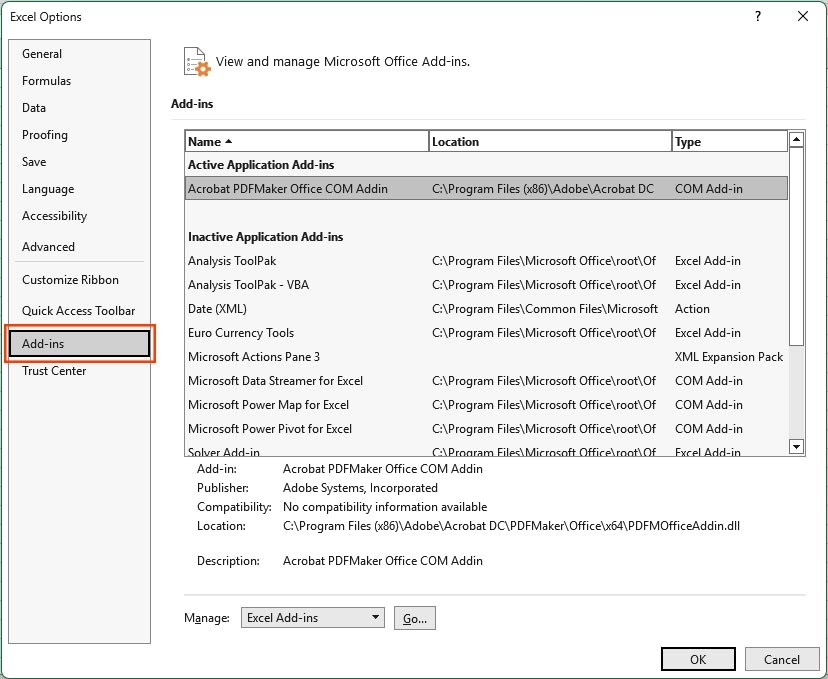
This menu is accessed by navigating to File > Options > Add-ins. At the bottom of the window, ensure “COM Add-ins” is selected in the “Manage:” drop-down menu and click “Go…”. The resulting dialog box allows active add-ins to be systematically disabled until the conflicting extension is identified and permanently removed.
See Next Post: Microsoft Excel VLOOKUP vs INDEX MATCH: Definitive Guide for Data Analysts
















