
Microsoft Excel Posts & Guides
Multiple ways to use Autosum buttons functions Excel 2016
- October 20, 2016
- Posted by: SPiyush
- Category: Microsoft Excel Buttons
Several ways to use Autosum buttons functions Excel

See Previous Post: Delete buttons tools Cells group Microsoft Excel 2016
The Autosum buttons functions are part of the Editing group. This group is present in the Home tab ribbon. And, in this post, we’re going to know furthermore about the buttons of this group. Also, an overview of all the buttons of this group was provided, in of the posts.
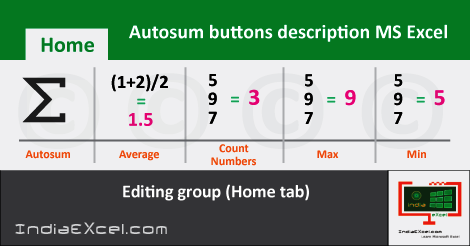
In the first place, the Autosum is the first button of the Editing group. This group has six buttons in total. They’re the Sum function, the Average function and the Count Numbers function etc; and so on. Also the buttons’re the Max function, the Min function, the More Functions.
Many ways to use Autosum buttons functions Excel – continued
The functions helps in addition, subtraction, multiplication, division etc; in Microsoft Excel. Also, they’re helpful for counting numbers, finding averages. And, a lot more various and numerous functions are also present which helps in different calculations as well.
Firstly, the Autosum function adds two or more than two numbers in cell. Secondly, the Average function helps to find out the average of the numbers. Thirdly, the Count Number functions helps to count the total numbers of the cells in selection.
Fourthly, the Max function shows the largest number, in a range of selection of numbers. And, the Min function helps to display the lowest number, in a range of selection of numbers. Further, the More Functions button shows the Insert Function dialog box pop up.
Multiple ways Autosum buttons functions Microsoft Excel
The Autosum function button, both vertically or horizontally can be used. It means the function is usable for a column of numbers or a row of numbers. Also, a range of numbers could also be calculated by the helps of the Autosum function. By all these types, the Autosum button is capable of handling calculations; and will add the numbers in question.
So, let us assume, we’ve to calculate a few numbers in a column. To calculate these, select all the numbers first and then click the Autosum button. The total gets shown at the bottom of the column. Almost similarly, initially select all the numbers in a row and click the Autosum button once or twice.
Lastly, for a range of numbers, select them and click the Autosum button. Alternatively, users can press the Shortcut Key i.e. the “Alt+=” to use the Autosum function. This Autosum function is the most used of all the other functions.
See Next Post: Fill buttons commands Editing group Microsoft Excel 2016
Author:SPiyush
Leave a Reply Cancel reply
STAY UPDATED
RECENT POSTS
File tab Backstage View buttons introduction Microsoft Excel 2016

File tab Backstage View tools MS Excel 2016 In this post,...
Add numbers addition Microsoft Excel 2016 (adding in excel)

How to Add numbers (adding numeric) MS Excel See Previous...
Using Format Painter tool button Microsoft Excel 2016

How to use Format Painter button MS Excel See Previous...
Clipboard group Cut Copy and Paste Microsoft Excel 2016
Cut Copy Paste Clipboard group MS Excel 2016 See Previous...
Description of Font group buttons tools MS Excel 2016
Overview of Font group buttons Excel 2016 See Previous Post: Clipboard...
Alignment group tools buttons Microsoft Excel 2016
Commands of Alignment group Excel 2016 See Previous Post: Font group...
Number group buttons tools Formats Microsoft Excel
Number group tools commands Excel 2016 See Previous Post: Alignment Group...
Styles group buttons Home tab Microsoft Excel 2016
Styles group tools Microsoft Excel 2016 See Previous Post: Number group buttons commands...
Cells group tools description Home tab MS Excel 2016
Cells group buttons overview Microsoft Excel See Previous Post: Styles group...
Editing group buttons Home tab Microsoft Excel 2016
Editing group commands Microsoft Excel See Previous Post: Cells group buttons...
Clipboard, Font, Alignment, Number, Styles, Cells, Editing groups Microsoft Excel
Home tab groups buttons Microsoft Excel 2016 See Previous Post: Editing...
Tables group buttons Insert Tab ribbon Microsoft Excel
Insert Tab tools of Tables group Excel 2016 See Previous...
Illustrations group buttons of Insert Tab Excel 2016
Illustrations group tools Microsoft Excel 2016 See Previous Post: Tables group buttons...
File tab Backstage View buttons introduction Microsoft Excel 2016
File tab Backstage View tools MS Excel 2016 In this post,...
Add numbers addition Microsoft Excel 2016 (adding in excel)
How to Add numbers (adding numeric) MS Excel See Previous...
Using Format Painter tool button Microsoft Excel 2016
How to use Format Painter button MS Excel See Previous...
Clipboard group Cut Copy and Paste Microsoft Excel 2016
Cut Copy Paste Clipboard group MS Excel 2016 See Previous...
Description of Font group buttons tools MS Excel 2016
Overview of Font group buttons Excel 2016 See Previous Post: Clipboard...
Alignment group tools buttons Microsoft Excel 2016
Commands of Alignment group Excel 2016 See Previous Post: Font group...
Number group buttons tools Formats Microsoft Excel
Number group tools commands Excel 2016 See Previous Post: Alignment Group...
Styles group buttons Home tab Microsoft Excel 2016
Styles group tools Microsoft Excel 2016 See Previous Post: Number group buttons commands...
Cells group tools description Home tab MS Excel 2016
Cells group buttons overview Microsoft Excel See Previous Post: Styles group...
Editing group buttons Home tab Microsoft Excel 2016
Editing group commands Microsoft Excel See Previous Post: Cells group buttons...
Clipboard, Font, Alignment, Number, Styles, Cells, Editing groups Microsoft Excel
Home tab groups buttons Microsoft Excel 2016 See Previous Post: Editing...
Tables group buttons Insert Tab ribbon Microsoft Excel
Insert Tab tools of Tables group Excel 2016 See Previous...
Illustrations group buttons of Insert Tab Excel 2016
Illustrations group tools Microsoft Excel 2016 See Previous Post: Tables group buttons...












