
Microsoft Excel Posts & Guides
Concatenate function of Formulas tab in Microsoft Excel
- November 9, 2016
- Posted by: SPiyush
- Category: Microsoft Excel Functions
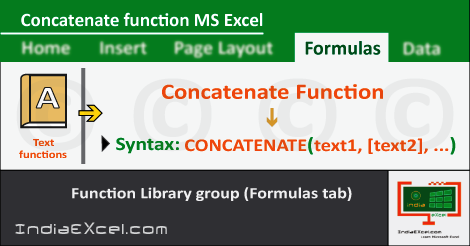
Concatenate function Text functions Excel 2016
Previous Post: Mid function of Formulas tab in Microsoft Excel 2016
In the last post we’ve discussed, it was about the Mid function. This function is helpful for extracting words or letters from the middle. For example, in a list of names having First, Middle and Last names, this function is quite handy.
Specifically in this post, let us know about the Concatenate function. And, part of the Text functions of the Formulas tab. Perhaps, some users may find a difficulty, in pronouncing the name.
Therefore, let us kindly split into three parts. And, they’re “Con“, “Cate“, and “Nate“. So, now it’s much easier for us to read, after we break this function.
Concatenate function Formulas tab MS Excel – continued
The Concatenate function basically helps to join multiple words, characters or strings. Most of all, the major role of this function is to make unity, hence we must salute this function.
Unity in the sense, that it joins data of multiple cells and makes into as one. And, the Syntax of the Concatenate function is quite an easy one to understand:
Syntax: CONCATENATE(text1, [text2], [text3], [text4], [text5], …)
Now let us elaborate, the above syntax. First of all, the input parameter i.e. “Text1” is the initial cell which has the first word or sentence.
Likewise, “Text2” to “Text5” are the four cells, after the first cell has been selected. And, “…” the three dots indicate that upto “n” numbers of texts can be joined together.
Alright, suppose we have three in three different cells. And, each of the words for individual cells are “Mesothelioma” “Law” “Firm“. And, after using the function, these words will be like MesotheliomaLawFirm. But, here is one issue and yes that’s right, What about the spaces in between the final word?
Concatenate function Text functions MS Excel 2016
So, in order to insert those spaces, we’ll have to write our Syntax as follows. CONCATENATE(Mesothelioma, ” “, Law, ” “, Firm) and press Enter Key. But, in reality, we know that, we will click the three cells instead. In reality, in place of the words we’ll have Cell Addresses in the syntax.
Lastly, also we can use the “And” i.e. “&” or say “Ampersand” symbol to join multiple words. It is the old fashion way of joining strings in Microsoft Excel.
So, if we’re to join the above mentioned word of the example. It would’ve been like “Mesothelioma&” “&Law&” “&Firm. And, our final words after joining will be Mesothelioma Law Firm.
See Next Post: SumIf function of Formulas tab in Microsoft Excel 2016
Author:SPiyush
Leave a Reply Cancel reply
STAY UPDATED
RECENT POSTS
File tab Backstage View buttons introduction Microsoft Excel 2016

File tab Backstage View tools MS Excel 2016 In this post,...
Add numbers addition Microsoft Excel 2016 (adding in excel)

How to Add numbers (adding numeric) MS Excel See Previous...
Using Format Painter tool button Microsoft Excel 2016

How to use Format Painter button MS Excel See Previous...
Clipboard group Cut Copy and Paste Microsoft Excel 2016

Cut Copy Paste Clipboard group MS Excel 2016 See Previous...
Description of Font group buttons tools MS Excel 2016
Overview of Font group buttons Excel 2016 See Previous Post: Clipboard...
Alignment group tools buttons Microsoft Excel 2016
Commands of Alignment group Excel 2016 See Previous Post: Font group...
Number group buttons tools Formats Microsoft Excel
Number group tools commands Excel 2016 See Previous Post: Alignment Group...
Styles group buttons Home tab Microsoft Excel 2016
Styles group tools Microsoft Excel 2016 See Previous Post: Number group buttons commands...
Cells group tools description Home tab MS Excel 2016
Cells group buttons overview Microsoft Excel See Previous Post: Styles group...
Editing group buttons Home tab Microsoft Excel 2016
Editing group commands Microsoft Excel See Previous Post: Cells group buttons...
Clipboard, Font, Alignment, Number, Styles, Cells, Editing groups Microsoft Excel
Home tab groups buttons Microsoft Excel 2016 See Previous Post: Editing...
Tables group buttons Insert Tab ribbon Microsoft Excel
Insert Tab tools of Tables group Excel 2016 See Previous...
Illustrations group buttons of Insert Tab Excel 2016
Illustrations group tools Microsoft Excel 2016 See Previous Post: Tables group buttons...
File tab Backstage View buttons introduction Microsoft Excel 2016
File tab Backstage View tools MS Excel 2016 In this post,...
Add numbers addition Microsoft Excel 2016 (adding in excel)
How to Add numbers (adding numeric) MS Excel See Previous...
Using Format Painter tool button Microsoft Excel 2016
How to use Format Painter button MS Excel See Previous...
Clipboard group Cut Copy and Paste Microsoft Excel 2016
Cut Copy Paste Clipboard group MS Excel 2016 See Previous...
Description of Font group buttons tools MS Excel 2016
Overview of Font group buttons Excel 2016 See Previous Post: Clipboard...
Alignment group tools buttons Microsoft Excel 2016
Commands of Alignment group Excel 2016 See Previous Post: Font group...
Number group buttons tools Formats Microsoft Excel
Number group tools commands Excel 2016 See Previous Post: Alignment Group...
Styles group buttons Home tab Microsoft Excel 2016
Styles group tools Microsoft Excel 2016 See Previous Post: Number group buttons commands...
Cells group tools description Home tab MS Excel 2016
Cells group buttons overview Microsoft Excel See Previous Post: Styles group...
Editing group buttons Home tab Microsoft Excel 2016
Editing group commands Microsoft Excel See Previous Post: Cells group buttons...
Clipboard, Font, Alignment, Number, Styles, Cells, Editing groups Microsoft Excel
Home tab groups buttons Microsoft Excel 2016 See Previous Post: Editing...
Tables group buttons Insert Tab ribbon Microsoft Excel
Insert Tab tools of Tables group Excel 2016 See Previous...
Illustrations group buttons of Insert Tab Excel 2016
Illustrations group tools Microsoft Excel 2016 See Previous Post: Tables group buttons...











