
Microsoft Excel Posts & Guides
Understand Quick Access Toolbar (QAT) in MS Excel
- October 30, 2016
- Posted by: SPiyush
- Category: Microsoft Excel Tips
Utilize Quick Access Toolbar (QAT) Excel 2016
See Previous Post: Set Printing for worksheet document Microsoft Excel 2016
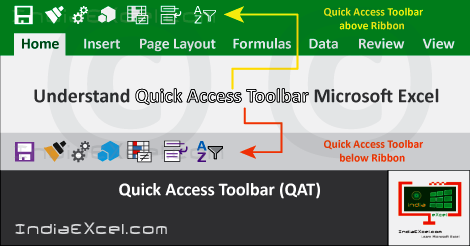
Let us understand about the Quick Access Toolbar. So, the QAT plays a very important role in Microsoft Excel. Also, it’s quite interesting to know about it, but overlooked by most of the users. This toolbar is the top right most blank space located above the Tab Ribbons.
Particularly, by default there are Eight tabs in Excel. They’re the Home tab, the Insert tab, the Page Layout tab etc. Also, the other tabs are the Formulas tab and the Data tab. Further, are the Review tab and the View tab. The Developer tab remains hidden by default.
The Quick-Access-Toolbar helps users to access the buttons of the groups quickly. Also, it helps to save time and speeds up the work in Microsoft Excel. So, to add a button in the Quick Access Toolbar follow theses steps.
- Right Click with Mouse Button on any of the button from a group.
- A Menu will show up having five options.
- Then, select the Add to Quick Access Toolbar.
- And, the selected button gets add to the QAT.
(QAT) Quick Access Toolbar Microsoft Excel – continued
Apart, from the Add to Quick Access Toolbar, the other options are the Customize Quick Access Toolbar etc. In addition, are the Show Quick-Access-Toolbar Below the Ribbon, the Customize the Ribbon and the Collapse the Ribbon.
So, after the button is added to the QAT, it becomes easily accessible to the user. The other powerful advantage of adding buttons to the Quick-Access-Toolbar is that; all the required buttons come into a single place.
Also, suppose that we’ve currently opened the Formulas tab. And, we need to apply the Freeze on the worksheet. So, now without clicking the View tab; we can quickly jump & use the Freeze Panes button from the QAT, isn’t it.
Lastly, to reach to the QAT buttons even more faster, click the Show Quick-Access-Toolbar Below the Ribbon options. By doing so, the Quick Access Toolbar will now move from the top; and show up below the ribbon, above the Formula Bar. Therefore, now all the buttons are more near to the worksheet for the speed access.
See Next Post: Advantages Text Box over Cell content Microsoft Excel 2016
Author:SPiyush
Leave a Reply Cancel reply
STAY UPDATED
RECENT POSTS
File tab Backstage View buttons introduction Microsoft Excel 2016

File tab Backstage View tools MS Excel 2016 In this post,...
Add numbers addition Microsoft Excel 2016 (adding in excel)

How to Add numbers (adding numeric) MS Excel See Previous...
Using Format Painter tool button Microsoft Excel 2016

How to use Format Painter button MS Excel See Previous...
Clipboard group Cut Copy and Paste Microsoft Excel 2016
Cut Copy Paste Clipboard group MS Excel 2016 See Previous...
Description of Font group buttons tools MS Excel 2016
Overview of Font group buttons Excel 2016 See Previous Post: Clipboard...
Alignment group tools buttons Microsoft Excel 2016
Commands of Alignment group Excel 2016 See Previous Post: Font group...
Number group buttons tools Formats Microsoft Excel
Number group tools commands Excel 2016 See Previous Post: Alignment Group...
Styles group buttons Home tab Microsoft Excel 2016
Styles group tools Microsoft Excel 2016 See Previous Post: Number group buttons commands...
Cells group tools description Home tab MS Excel 2016
Cells group buttons overview Microsoft Excel See Previous Post: Styles group...
Editing group buttons Home tab Microsoft Excel 2016
Editing group commands Microsoft Excel See Previous Post: Cells group buttons...
Clipboard, Font, Alignment, Number, Styles, Cells, Editing groups Microsoft Excel
Home tab groups buttons Microsoft Excel 2016 See Previous Post: Editing...
Tables group buttons Insert Tab ribbon Microsoft Excel
Insert Tab tools of Tables group Excel 2016 See Previous...
Illustrations group buttons of Insert Tab Excel 2016
Illustrations group tools Microsoft Excel 2016 See Previous Post: Tables group buttons...
File tab Backstage View buttons introduction Microsoft Excel 2016
File tab Backstage View tools MS Excel 2016 In this post,...
Add numbers addition Microsoft Excel 2016 (adding in excel)
How to Add numbers (adding numeric) MS Excel See Previous...
Using Format Painter tool button Microsoft Excel 2016
How to use Format Painter button MS Excel See Previous...
Clipboard group Cut Copy and Paste Microsoft Excel 2016
Cut Copy Paste Clipboard group MS Excel 2016 See Previous...
Description of Font group buttons tools MS Excel 2016
Overview of Font group buttons Excel 2016 See Previous Post: Clipboard...
Alignment group tools buttons Microsoft Excel 2016
Commands of Alignment group Excel 2016 See Previous Post: Font group...
Number group buttons tools Formats Microsoft Excel
Number group tools commands Excel 2016 See Previous Post: Alignment Group...
Styles group buttons Home tab Microsoft Excel 2016
Styles group tools Microsoft Excel 2016 See Previous Post: Number group buttons commands...
Cells group tools description Home tab MS Excel 2016
Cells group buttons overview Microsoft Excel See Previous Post: Styles group...
Editing group buttons Home tab Microsoft Excel 2016
Editing group commands Microsoft Excel See Previous Post: Cells group buttons...
Clipboard, Font, Alignment, Number, Styles, Cells, Editing groups Microsoft Excel
Home tab groups buttons Microsoft Excel 2016 See Previous Post: Editing...
Tables group buttons Insert Tab ribbon Microsoft Excel
Insert Tab tools of Tables group Excel 2016 See Previous...
Illustrations group buttons of Insert Tab Excel 2016
Illustrations group tools Microsoft Excel 2016 See Previous Post: Tables group buttons...












