
Microsoft Excel Posts & Guides
Date Time button functions of Function Library group Excel 2016
Date Time button functions Microsoft Excel
See Previous Post: Text button functions Function Library group Microsoft Excel 2016
Previously, in the post, the Text functions have been explained. The CLEAN, CONCATENATE, EXACT, FIND, LEFT, LEN, LOWER, MID and the PROPER etc; are quite a few of them. The Text functions helps to increase productivity and quality of the data.
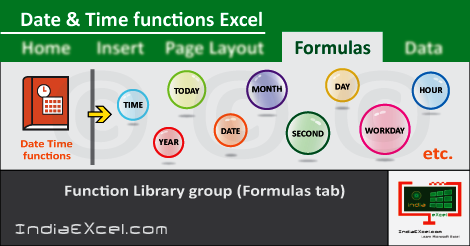
So, now in this post, we’ll discuss about the Date Time button functions. This button is part of the Function Library group in Formulas tab. And it contains twenty four functions in it. These are the DATE, DATEVALUE, DAY, DAYS, DAYS360 and the EDATE etc.
Also, are the EOMONTH, HOUR, ISOWEEKNUM, MINUTE, and the MONTH etc. Further, are the NETWORKDAYS, NETWORKDAYS.INTL and the NOW etc.
Furthermore, are the SECOND, TIME, TIMEVALUE, TODAY and the WEEKDAY etc. Additionally, are the WEEKNUM, WORKDAY, WORKDAY.INTL, YEAR and the YEARFRAC.
As the name of this post states, these functions are based on Date and Time calculations. Also, to understand, the tasks related to Hour, Minute and Second require the Time functions. And the Day, Week, Month and the Year based tasks need the Date functions. Notably, the Date and Time functions uses the Microsoft Excel Date-Time Codes to display the outcome result.
Date Time button functions in MS Excel 2016
First of all, the DATE function shows the number that denotes the date in Microsoft Excel Date-Time Code. Secondly, the DATEVALUE function changes a date, in the form of text to a number, that denotes the date. Thirdly, the DAY function shows the day of the month, a number from One (1) to Thirty One (31).
Fourthly, the DAYS function shows the number of days among the two dates. Next, the DAYS360 function shows the number of days between two dates, based on a year i.e. (360-day).
Then, the EDATE displays the serial number of date, before or after start date, i.e. the marked number of months. Further, the EOMONTH shows the serial number of last day of month, before or after a stated number of months.
Again, the HOUR function shows the hour as a number, from Zero (0) to Twenty Three (23) i.e. (12:00 A.M.) to (11:00 P.M.). The ISOWEEKNUM function displays the ISO Week number in the year for a specified date.
Furthermore, the MINUTE function shows the minute, a number from Zero (0) to Fifty Nine (59). Next, the MONTH function displays the month, a number from One (1) for January to Twelve (12) for December. The NETWORKDAYS function shows the number of entire workdays among two dates.
Even more, the NETWORKDAYS.INTL shows the number of entire workdays among two dates with custom weekend limits. The NOW function displays the current date and time, formatted as a date and time. Next, the SECOND function shows the second, a number from Zero (0) to Fifty Nine (59).
Date Time button functions in Excel – continued
The TIME function changes specified numbers i.e. Hours, Minutes, and Seconds to an Excel serial number, formatted with a time format. Moreover, the TIMEVALUE function changes a text time to an Excel serial number for a time.
Then, the TODAY function shows the current date formatted as a date. The WEEKDAY displays a number, recognizing day of the week of a date, from One (1) to Seven (7). Again, the WEEKNUM function shows the week number in the year. Next, the WORKDAY function displays the serial number of the date, before or after a specified number of workdays.
The WORKDAY.INTL shows the serial number of the date, before or after a stated number of workdays with custom weekend limits. Lastly, the YEAR function displays the year of a date. And the YEARFRAC function shows the year fraction, illustrating the number of entire days, among start date and end date.
See Next Post: Lookup Reference button functions Function Library Microsoft Excel 2016
















