
Microsoft Excel Posts & Guides
Use Apply Conditional Formatting in worksheet Excel
- October 27, 2016
- Posted by: SPiyush
- Category: Microsoft Excel Buttons
How to Use Apply Conditional Formatting MS Excel
See Previous Post: Create Charts from data worksheet Microsoft Excel 2016
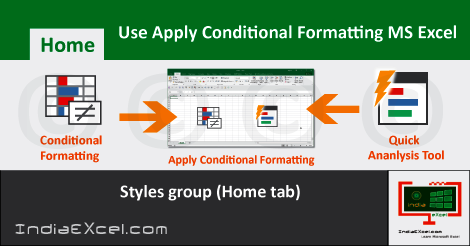
As we know that, the Styles group has the Conditional Formatting button. So, we’ll know How to Use Apply Conditional Formatting in a worksheet, in this post. This button has total Eight buttons. Some of them’re the Highlight Cell Rules button, the Data Bars button and the Icon Sets button etc; and so on.
Also, in one of the posts, we firstly got to know about the Conditional Formatting buttons. But, through this post, we’ll now know, how to use and apply them. Especially, the Conditional Formatting feature is quite captivating and attractive in terms of the functionality in Excel.
Because, the Conditional Formatting helps users to distinguish between the data in worksheet. In addition, also users can highlight necessary aspects in the data using these various buttons. So, to apply the Conditional Formatting in a cell or multiple cells, these steps’re required. We’re taking an example of some random numbers present in a column.
Use Apply Conditional Formatting MS Excel – continued
- First of all, select the Column, Row or the Range of Cells which have numbers.
- Then, go to the Highlight Cell Rules and select Greater Than button.
- A Greater than dialog show up.
- Now, type the number in the Text Box under Format cells that are GREATER THAN.
- Next, select the color from the Combo Box on the right side of the Text Box.
- And, finally click the OK button to Use and Apply the Conditional Formatting Rule.
Similarly, the other buttons such as the Less Than button or the Text that Contains button etc; and so on, functions on the same process. But, the New Rule button, the Clear Rules button and the Manage Rules button works slightly different.
Above all, also the Quick Analysis introduced in Microsoft Excel 2013 and Microsoft Excel 2016; helps to quickly and easily apply some of the types of Conditional Formatting rules. The Shortcut Key for the Quick Analysis tool is “Ctrl+Q“.
See Next Post: Understand Fill Handle worksheet Microsoft Excel 2016
Author:SPiyush
Leave a Reply Cancel reply
STAY UPDATED
RECENT POSTS
File tab Backstage View buttons introduction Microsoft Excel
File tab Backstage View tools Microsoft Excel Complete Guide to...
Add numbers addition Microsoft Excel (adding in excel)
How to Add numbers (adding numeric) Microsoft Excel See Previous...
Using Format Painter button Microsoft Excel
Format Painter tool in Microsoft Excel See Previous Post: Add numbers...
Clipboard group Cut Copy and Paste Microsoft Excel
Cut Copy Paste Clipboard group MS Excel 2016 See Previous...
Description of Font group buttons tools Microsoft Excel
Overview of Font group buttons Excel 2016 See Previous Post: Clipboard...
Alignment group tools buttons Microsoft Excel
Commands of Alignment group Excel 2016 See Previous Post: Font group...
Number group buttons tools Formats Microsoft Excel
Number group tools commands Excel 2016 See Previous Post: Alignment Group...
Styles group buttons of Home tab Microsoft Excel
Styles group tools Microsoft Excel 2016 See Previous Post: Number group buttons commands...

Cells group tools description Home tab Microsoft Excel
Cells group buttons overview Microsoft Excel See Previous Post: Styles group...
Editing group buttons Home tab Microsoft Excel
Editing group commands Microsoft Excel See Previous Post: Cells group buttons...
Clipboard, Font, Alignment, Number, Styles, Cells, Editing groups Microsoft Excel
Home tab groups buttons Microsoft Excel 2016 See Previous Post: Editing...

Tables group buttons Insert Tab ribbon Microsoft Excel
Insert Tab tools of Tables group Excel 2016 See Previous...
Illustrations group buttons of Insert Tab Microsoft Excel
Illustrations group tools Microsoft Excel 2016 See Previous Post: Tables group buttons...

File tab Backstage View buttons introduction Microsoft Excel
File tab Backstage View tools Microsoft Excel Complete Guide to...
Add numbers addition Microsoft Excel (adding in excel)
How to Add numbers (adding numeric) Microsoft Excel See Previous...
Using Format Painter button Microsoft Excel
Format Painter tool in Microsoft Excel See Previous Post: Add numbers...
Clipboard group Cut Copy and Paste Microsoft Excel
Cut Copy Paste Clipboard group MS Excel 2016 See Previous...
Description of Font group buttons tools Microsoft Excel
Overview of Font group buttons Excel 2016 See Previous Post: Clipboard...
Alignment group tools buttons Microsoft Excel
Commands of Alignment group Excel 2016 See Previous Post: Font group...
Number group buttons tools Formats Microsoft Excel
Number group tools commands Excel 2016 See Previous Post: Alignment Group...
Styles group buttons of Home tab Microsoft Excel
Styles group tools Microsoft Excel 2016 See Previous Post: Number group buttons commands...
Cells group tools description Home tab Microsoft Excel
Cells group buttons overview Microsoft Excel See Previous Post: Styles group...
Editing group buttons Home tab Microsoft Excel
Editing group commands Microsoft Excel See Previous Post: Cells group buttons...
Clipboard, Font, Alignment, Number, Styles, Cells, Editing groups Microsoft Excel
Home tab groups buttons Microsoft Excel 2016 See Previous Post: Editing...
Tables group buttons Insert Tab ribbon Microsoft Excel
Insert Tab tools of Tables group Excel 2016 See Previous...
Illustrations group buttons of Insert Tab Microsoft Excel
Illustrations group tools Microsoft Excel 2016 See Previous Post: Tables group buttons...












