
Microsoft Excel Posts & Guides
Create and Edit Custom Lists in Excel (Sorting Guide)
Previous post: How to Wrap Text in Excel (Fix Text Overflow Instantly)
Have you ever tried to sort a column in Microsoft Excel, only to find that it forces your data into a strict alphabetical or numerical order?
If you try to sort retail inventory by sizes, Excel will alphabetize them as Large, Medium, Small—which makes absolutely no logical sense. Similarly, if your company’s fiscal calendar starts in April, standard chronological sorting will still force January to the top.
To fix this, you need to use Custom Lists. This powerful, hidden feature allows you to teach Excel your own personalized data orders for sorting and autofilling columns instantly.
In this step-by-step tutorial, you will learn exactly where the Custom Lists menu is hidden, how to create your own lists, and how to edit them across Excel 2019, 2021, and Microsoft 365.
Where is the “Edit Custom Lists” Button Hidden?
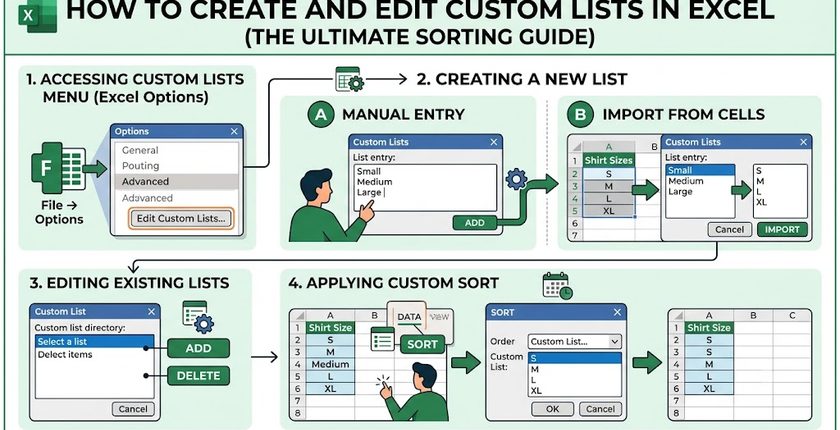
Microsoft hides the Custom Lists configuration deep inside its advanced backstage settings interface. Follow this precise menu path to find it:
- Click on the File tab in the top-left corner of your Ribbon.
- Select Options at the very bottom of the left sidebar.
- In the Excel Options popup window, click the Advanced category.
- Scroll all the way down to the bottom of the Advanced page until you find the General section.
- Click the Edit Custom Lists… button.
Method 1: Creating a Custom List Manually
If you have a short list of repetitive items (such as corporate department hierarchies or T-shirt sizes), you can type them directly into the interface:
1. Open the Custom Lists dialog box using the steps outlined above.
2. Click on NEW LIST in the left-hand column window.
3. Click inside the List entries box on the right side.
4. Type your items in order, pressing Enter after each item:
text
Small
Medium
Large
X-Large
5. Click the Add button. Your new custom setup will instantly populate into the permanent left-hand directory.
6. Click OK to save and exit.
Method 2: Importing a Massive List from Existing Cells
If you need to load a long sequence (such as 50 local distributor names or specific Indian regional office locations), typing them manually is inefficient. You can import them directly from your active spreadsheet:
- Open the Edit Custom Lists menu box.
- Look at the bottom right corner for the Import list from cells: input bar.
- Click the tiny spreadsheet collapse icon next to the bar, and highlight the column array of cells containing your sequence on your worksheet.
- Click the Import button. Excel will instantly read the cells and build your custom data loop sequence.
- Click OK.
How to Use Your New List for Smart Sorting
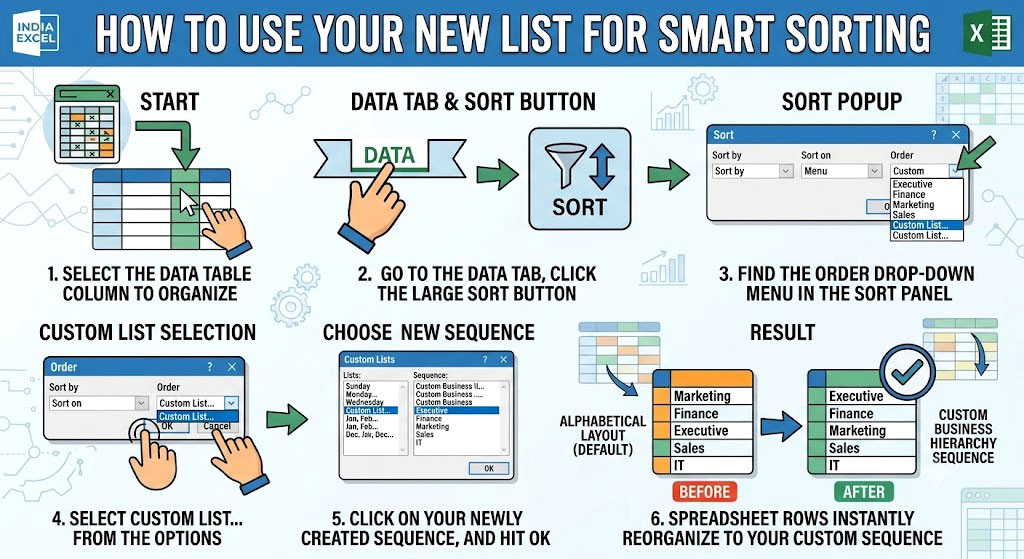
Once your custom sequence is registered into your copy of Microsoft Excel, you can use it to reorganize any messy corporate data report cleanly:
- Select the data table column you wish to organize.
- Go to the Data tab on your Ribbon, and click the large Sort button inside the Sort & Filter group.
- In the Sort popup configuration panel, look under the Order drop-down menu on the far right.
- Select Custom List… from the options.
- Click on your newly created sequence from the list array directory, and hit OK.
Your spreadsheet rows will instantly reorganize themselves to perfectly mirror your custom business hierarchy sequence rather than defaulting back to standard alphabetical layouts.
❓ Frequently Asked Questions (FAQ)
Can I delete default lists like days of the week or months?
No. Excel’s native built-in lists (e.g., Jan, Feb, Mar or Monday, Tuesday) are hard-coded into the core registry software application structure. The Delete button will remain grayed out and unclickable when those specific structural rows are selected. You can only modify or delete items that you have personally created or imported.
Will my custom list work on someone else’s computer if I email them the file?
Custom lists are saved directly to your local computer’s system registry settings, not inside the standalone .xlsx file workbook. However, if another corporate employee opens your file, the custom sort order will stay intact on their layout. If they want to extend or drag autofill cells using your list on their laptop, they will need to highlight your data column and click Import into their own local settings panel.
See Next Post: How to Create Charts in Excel (The Complete Visual Reporting Guide)
















