
Microsoft Excel Posts & Guides
Create Macro in Excel (Step-by-Step VBA Automation Guide)
Previous post: How to Remove Duplicates in Excel (The Safe Way Without Losing Data)
If you find yourself performing the exact same formatting steps, cleaning the same weekly data exports, or building identical reports every Monday morning, you are wasting valuable time.
Microsoft Excel allows you to record these repetitive actions and save them as a script using Macros and VBA (Visual Basic for Applications). Located inside the Code group on your Developer tab, this automation tool turns hours of manual clicking into a single button press.
In this beginner-friendly tutorial, you will learn how to unlock the hidden Developer tab, record your very first functional macro, and save your workbook without losing your automation scripts.
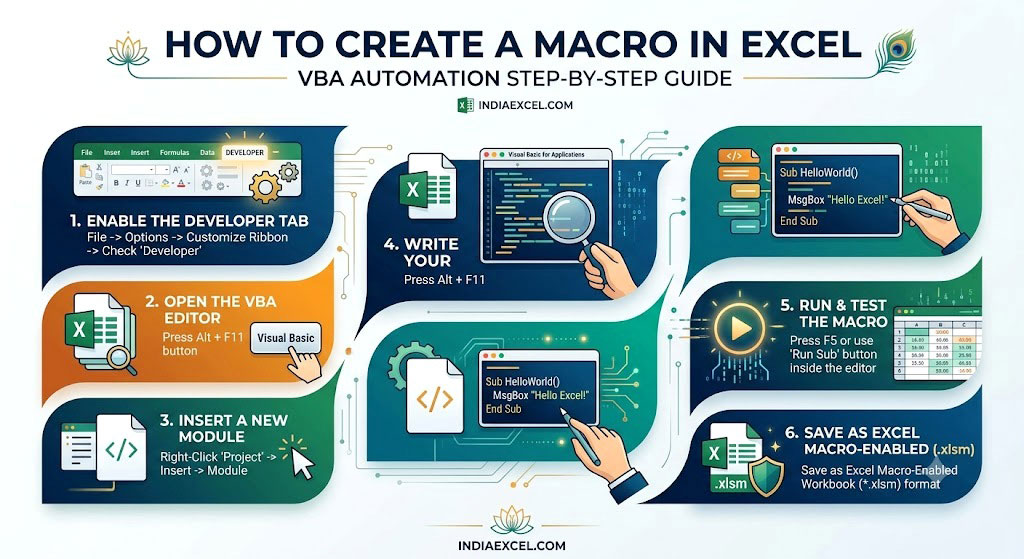
Step 1: How to Reveal the Hidden Developer Tab
By default, Microsoft hides the Developer tools to prevent casual users from accidentally altering advanced settings. Before writing or recording a macro, you must turn it on:
- Right-click anywhere on your top Ribbon toolbar and select Customize the Ribbon…
- In the options window that pops up, look at the checklist column on the right side.
- Scroll down and check the box next to Developer.
- Click OK. The Developer tab will now permanently appear on your main top menu layout.
Step 2: Setting Up the Macro Recorder
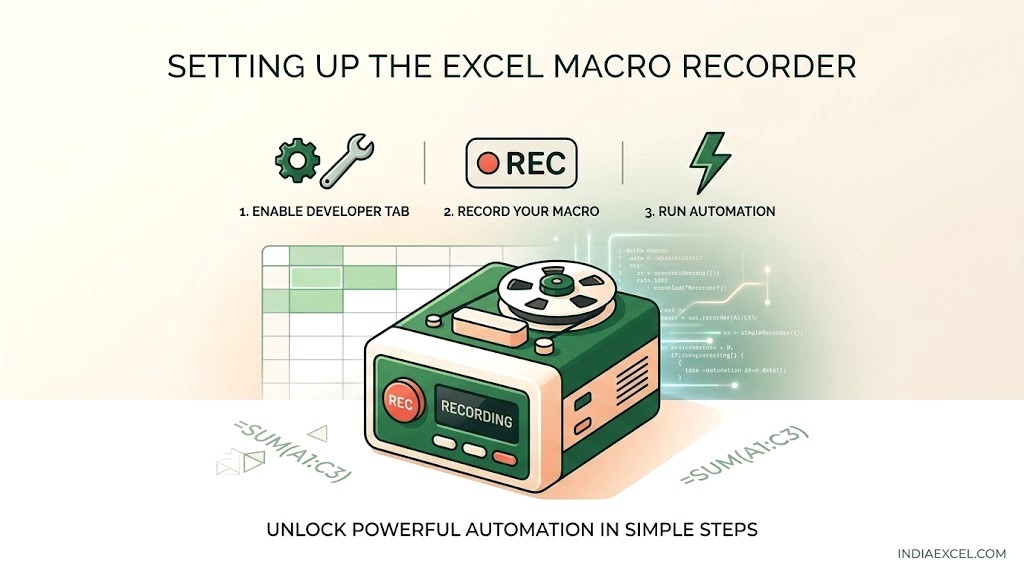
Think of the Macro Recorder as a video camera for your spreadsheet actions. It watches every cell click, font change, and formula you type, and translates it into background VBA code.
1. Click on the Developer tab and look inside the Code group on the far left.
2. Click the Record Macro button.
3. A configuration panel will appear. Fill in your automation metrics:
- Macro Name: Give it a clear, descriptive name using underscores instead of spaces (e.g.,
Format_Weekly_Report). - Shortcut Key: Assign a letter combination (e.g.,
Ctrl + Shift + Q) to trigger your automation instantly via keyboard layout. - Store Macro in: Select This Workbook to keep the script embedded inside this specific asset.
4. Click OK. The recorder is now live.
Step 3: Record Your First Action and Stop
Let’s record a basic layout action to test the engine:
- Click on cell
A1, type “Master Corporate Ledger“, change the font to bold, and fill the cell background color with light blue. - Immediately go back to the Developer tab and click Stop Recording.
To test your new macro, clear out cell A1. Press your shortcut keys (Ctrl + Shift + Q), and watch Excel instantly rewrite and reformat the cell in a split second.
⚠️ Critical Step: Saving Your Workbook Safely
Standard Excel files (.xlsx) automatically wipe out and destroy all underlying background VBA code strings when saved. If you save your project incorrectly, your newly recorded macro will be deleted permanently.
- The Fix: Go to File > Save As. Click the file format dropdown selector menu and change it from Excel Workbook (.xlsx) to Excel Macro-Enabled Workbook (*.xlsm). Look for the distinct exclamation mark badge icon on the file thumbnail to confirm it is saved safely.
❓ Frequently Asked Questions (FAQ)
What is the difference between Macros and VBA?
- Macro: The sequence of automated actions you record or play back inside the interface grid layout.
- VBA (Visual Basic for Applications): The formal programming code language that Excel writes behind the scenes to execute that macro. You can view and edit this code anytime by pressing Alt + F11.
Why are my macros blocked when I reopen my workbook?
Excel has strict security parameters to prevent unauthorized scripts from running harmful data updates. If you see a yellow warning bar across the top of your sheet, click Enable Content to authorize the macro loop execution.
See Next Post: How to Create a Macro in Excel (Step-by-Step VBA Automation Guide)
















