
Microsoft Excel Posts & Guides
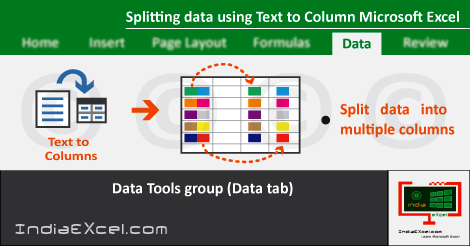
Splitting data using Text to Columns button worksheet Excel
- November 3, 2016
- Posted by: SPiyush
- Category: Microsoft Excel Tips

Split content use Text Columns button Excel 2016
Previous Post: Apply Filter on data with Cells in worksheet Microsoft Excel 2016
While working in Microsoft Excel, there are often times, when we need to separate the data. The content present in a single cell has to be split into other cells from a single cell. So, in this post, we’ll know about, How to Split the data from a cell to multiple cells ?
In the First place, the lengthy method to separate content from the cells is; by using the Cut button and then the Paste button. And, this seems a nice method, for a less amount of data. But, what about if we’ve lots of content in the worksheet ? Well, in that case, we can use the Text to Columns button.
The Data Tool group of the Data tab ribbon has the Text Columns button. Also, apart from this, there are some other buttons too. Some of them are the Flash Fill button, the Remove Duplicates and the Data Validation etc; and so on.
Split content Text Columns button Microsoft Excel – continued
But here, we are discussing about the Text to Column button. So, let us know how to use this button, by following these steps. Suppose that, in five cells of a Column, we’are having five names; with the First Name and the Last Name, having a space in between these.
- Firstly, select the five cells which has the First and the Last Names.
- Then, click the Text to Columns button. The Convert Text to Wizard – Step 1 of 3 shows up.
- Now, we’ll see that, the Delimited option and the Fixed Width option buttons. (Step 1 of 3).
- So, select the first option i.e. the Delimited; and click Next button at the bottom. (Step 2 of 3).
- And, then from the Delimiters, put a check/tick mark on the Space check box; and again click the Next button. (Step 2 of 3).
- Note, that the Tab check box is already has the tick; so we can remove the tick or leave it, as it is. (Step 2 of 3).
- Finally, click the Finish button, after the next button and we are done. Leave the other settings as it is, in this last step. (Step 3 of 3).
- And, now the First Name remains in the Left column, and the Last Name moves to the adjacent column cells.
Lastly, the Text to Columns button helps to split the data from a single to multiple cells. Specifically, the Fixed Width option is select, to split the data with equal number of characters; on each sides in a cell having a space; in between or any other special character.
See Next Post: VLookup function Lookup & Reference Microsoft Excel 2016
Author:SPiyush
Leave a Reply Cancel reply
STAY UPDATED
RECENT POSTS
File tab Backstage View buttons introduction Microsoft Excel
File tab Backstage View tools Microsoft Excel Complete Guide to...
Add numbers addition Microsoft Excel (adding in excel)
How to Add numbers (adding numeric) Microsoft Excel See Previous...
Using Format Painter button Microsoft Excel
Format Painter tool in Microsoft Excel See Previous Post: Add numbers...
Clipboard group Cut Copy and Paste Microsoft Excel
Cut Copy Paste Clipboard group MS Excel 2016 See Previous...
Description of Font group buttons tools Microsoft Excel
Overview of Font group buttons Excel 2016 See Previous Post: Clipboard...
Alignment group tools buttons Microsoft Excel
Commands of Alignment group Excel 2016 See Previous Post: Font group...
Number group buttons tools Formats Microsoft Excel
Number group tools commands Excel 2016 See Previous Post: Alignment Group...
Styles group buttons of Home tab Microsoft Excel
Styles group tools Microsoft Excel 2016 See Previous Post: Number group buttons commands...

Cells group tools description Home tab Microsoft Excel
Cells group buttons overview Microsoft Excel See Previous Post: Styles group...
Editing group buttons Home tab Microsoft Excel
Editing group commands Microsoft Excel See Previous Post: Cells group buttons...
Clipboard, Font, Alignment, Number, Styles, Cells, Editing groups Microsoft Excel
Home tab groups buttons Microsoft Excel 2016 See Previous Post: Editing...

Tables group buttons Insert Tab ribbon Microsoft Excel
Insert Tab tools of Tables group Excel 2016 See Previous...
Illustrations group buttons of Insert Tab Microsoft Excel
Illustrations group tools Microsoft Excel 2016 See Previous Post: Tables group buttons...

File tab Backstage View buttons introduction Microsoft Excel
File tab Backstage View tools Microsoft Excel Complete Guide to...
Add numbers addition Microsoft Excel (adding in excel)
How to Add numbers (adding numeric) Microsoft Excel See Previous...
Using Format Painter button Microsoft Excel
Format Painter tool in Microsoft Excel See Previous Post: Add numbers...
Clipboard group Cut Copy and Paste Microsoft Excel
Cut Copy Paste Clipboard group MS Excel 2016 See Previous...
Description of Font group buttons tools Microsoft Excel
Overview of Font group buttons Excel 2016 See Previous Post: Clipboard...
Alignment group tools buttons Microsoft Excel
Commands of Alignment group Excel 2016 See Previous Post: Font group...
Number group buttons tools Formats Microsoft Excel
Number group tools commands Excel 2016 See Previous Post: Alignment Group...
Styles group buttons of Home tab Microsoft Excel
Styles group tools Microsoft Excel 2016 See Previous Post: Number group buttons commands...
Cells group tools description Home tab Microsoft Excel
Cells group buttons overview Microsoft Excel See Previous Post: Styles group...
Editing group buttons Home tab Microsoft Excel
Editing group commands Microsoft Excel See Previous Post: Cells group buttons...
Clipboard, Font, Alignment, Number, Styles, Cells, Editing groups Microsoft Excel
Home tab groups buttons Microsoft Excel 2016 See Previous Post: Editing...
Tables group buttons Insert Tab ribbon Microsoft Excel
Insert Tab tools of Tables group Excel 2016 See Previous...
Illustrations group buttons of Insert Tab Microsoft Excel
Illustrations group tools Microsoft Excel 2016 See Previous Post: Tables group buttons...












