
Microsoft Excel Posts & Guides
Merge Center buttons of Alignment group Microsoft Excel
- October 16, 2016
- Posted by: SPiyush
- Category: Microsoft Excel Buttons
Merge Center buttons of Home tab Excel 2016
See Previous Post: Orientation buttons tools Alignment group Microsoft Excel 2016
In the first place, we’ve already discussed about the Alignment group. This group is part of the Home tab ribbon. All the buttons of this group was explained, in one of our posts. But, it was an overview of the Merge Center buttons. Hence, now in this post, we’ll further discuss only about on these buttons.
In the previous, all the Orientation buttons were part of the discussion. Some of they’re Angle Counterclockwise and the Angle Clockwise buttons etc; and so on. In total, the Alignment group has Eleven buttons. They’re the Align, the Wrap Text, the Indent buttons etc.
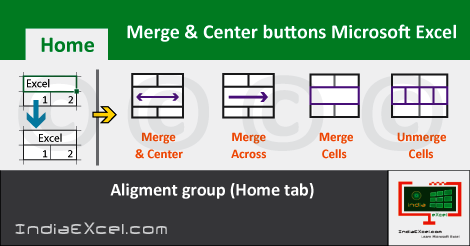
So, the Merge Center button has four buttons including itself. These are the Merge Across, the Merge Cells and the Unmerge Cells. Firstly, the Merge Center button helps to join cells together by making it as a single cell. Obviously, the new single cell is large in size, due to the combination of the multiple cells. Also, the contents of the cell get centered in the large cell i.e. in the middle.
Merge Center buttons of Microsoft Excel – continued
Secondly, the Merge Across button merges the selected cells in the same row. And, the cell becomes large as well due to joining of the cells. But, unlike the Merge Center, the Merge Across doesn’t centers the content after merging. So, if multiple cells have values, the first left cell’s value remains, while the others’re deleted due to the merge.
Thirdly, the Merge Cells button helps to merge the selected cells into one individual cell. Also, like the Merge Center, this button does not center the contents too, after the merging of the cells. And, similarly the first left cell’s values’re remained, after the merging process at last, out of the other ones.
Lastly, the Unmerge Cell button splits the newly formed large cell single cell to multiple cells. It means all the cells participated in the merging process, retain their positions. But, only the values of the left single cell gets left, and the others aren’t.
See Next Post: Introduction Format Cells dialog box Microsoft Excel 2016
Author:SPiyush
Leave a Reply Cancel reply
STAY UPDATED
RECENT POSTS
File tab Backstage View buttons introduction Microsoft Excel
File tab Backstage View tools Microsoft Excel Complete Guide to...
Add numbers addition Microsoft Excel (adding in excel)
How to Add numbers (adding numeric) Microsoft Excel See Previous...
Using Format Painter button Microsoft Excel
Format Painter tool in Microsoft Excel See Previous Post: Add numbers...
Clipboard group Cut Copy and Paste Microsoft Excel
Cut Copy Paste Clipboard group MS Excel 2016 See Previous...
Description of Font group buttons tools Microsoft Excel
Overview of Font group buttons Excel 2016 See Previous Post: Clipboard...
Alignment group tools buttons Microsoft Excel
Commands of Alignment group Excel 2016 See Previous Post: Font group...
Number group buttons tools Formats Microsoft Excel
Number group tools commands Excel 2016 See Previous Post: Alignment Group...
Styles group buttons of Home tab Microsoft Excel
Styles group tools Microsoft Excel 2016 See Previous Post: Number group buttons commands...

Cells group tools description Home tab Microsoft Excel
Cells group buttons overview Microsoft Excel See Previous Post: Styles group...
Editing group buttons Home tab Microsoft Excel
Editing group commands Microsoft Excel See Previous Post: Cells group buttons...
Clipboard, Font, Alignment, Number, Styles, Cells, Editing groups Microsoft Excel
Home tab groups buttons Microsoft Excel 2016 See Previous Post: Editing...

Tables group buttons Insert Tab ribbon Microsoft Excel
Insert Tab tools of Tables group Excel 2016 See Previous...
Illustrations group buttons of Insert Tab Microsoft Excel
Illustrations group tools Microsoft Excel 2016 See Previous Post: Tables group buttons...

File tab Backstage View buttons introduction Microsoft Excel
File tab Backstage View tools Microsoft Excel Complete Guide to...
Add numbers addition Microsoft Excel (adding in excel)
How to Add numbers (adding numeric) Microsoft Excel See Previous...
Using Format Painter button Microsoft Excel
Format Painter tool in Microsoft Excel See Previous Post: Add numbers...
Clipboard group Cut Copy and Paste Microsoft Excel
Cut Copy Paste Clipboard group MS Excel 2016 See Previous...
Description of Font group buttons tools Microsoft Excel
Overview of Font group buttons Excel 2016 See Previous Post: Clipboard...
Alignment group tools buttons Microsoft Excel
Commands of Alignment group Excel 2016 See Previous Post: Font group...
Number group buttons tools Formats Microsoft Excel
Number group tools commands Excel 2016 See Previous Post: Alignment Group...
Styles group buttons of Home tab Microsoft Excel
Styles group tools Microsoft Excel 2016 See Previous Post: Number group buttons commands...
Cells group tools description Home tab Microsoft Excel
Cells group buttons overview Microsoft Excel See Previous Post: Styles group...
Editing group buttons Home tab Microsoft Excel
Editing group commands Microsoft Excel See Previous Post: Cells group buttons...
Clipboard, Font, Alignment, Number, Styles, Cells, Editing groups Microsoft Excel
Home tab groups buttons Microsoft Excel 2016 See Previous Post: Editing...
Tables group buttons Insert Tab ribbon Microsoft Excel
Insert Tab tools of Tables group Excel 2016 See Previous...
Illustrations group buttons of Insert Tab Microsoft Excel
Illustrations group tools Microsoft Excel 2016 See Previous Post: Tables group buttons...












