
Microsoft Excel Posts & Guides
Advantages of Text Box over Cell content in Excel 2016
- October 31, 2016
- Posted by: SPiyush
- Category: Microsoft Excel Tips
Benefits of Text Box in worksheet MS Excel
See Previous Post: Understand Quick Access Toolbar (QAT) Microsoft Excel 2016
In this post, we’ll know about the advantages of the Text Box. First of all, the Text-Box is part of the Text group. This group is present in the Insert tab ribbon. Also, the Text Box can be find inside the Shapes button. This button is part of the Illustrations group of the Insert tab as well.
Above all, the Text-Box comes under the Basic Shapes category of the Shapes button. In order to create a Text Box, let us see the steps.
- Firstly, click the Insert tab.
- Then, select the Text Box button from the Text group.
- Alternatively, or select the Text-Box from the Shapes button.
- Then, click anywhere on the worksheet.
- Also, we can click and drag with the Left Mouse Button.
- And, so the TextBox has been created.
Especially, the Text Box is a type of floating container, which holds texts. Whether, it is the Alphabet, Numeric, Special Character etc; and so on. The flexibility of dragging the Text-Box, anywhere on the worksheet is quite fascinating.
Advantages of Text Box in Microsoft Excel – continued
If the data in the cells is to moved; in comparison to the Text-Box, the movement will be slow. Also, the cells itself aren’t rotate to a certain angle. But, the Texts present in the cells is rotated, using the Orientation buttons.
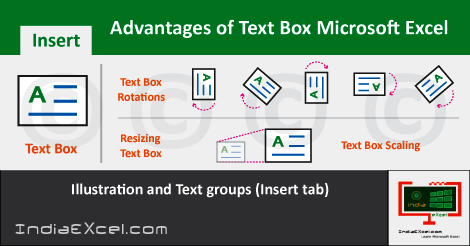
Also, there are several other characteristics of the Text Boxes. The Text Box created by just single click is completely Transparent and has no borders. Additionally, the Text-Box could be scaled or rotated, just like any other shapes.
So, when we draw the Text-Box on the worksheet; the Drawing Tools tab shows up, at the Top of the Microsoft Excel window. The Drawing Tools tab has the Format tab under it. Significantly, these tabs which appear on the top, are for the additional support.
Lastly, the Drawing Tools helps to modify the various Shapes as per our requirements. The Drawing Tools has five groups. They are the Insert Shapes group and the Shape Styles group etc. Additionally, are the WordArt Styles group, the Arrange group and the Size group.
See Next Post: Using Flash Fill feature introduced from Microsoft Excel 2016
Author:SPiyush
Leave a Reply Cancel reply
STAY UPDATED
RECENT POSTS
File tab Backstage View buttons introduction Microsoft Excel 2016

File tab Backstage View tools MS Excel 2016 In this post,...
Add numbers addition Microsoft Excel 2016 (adding in excel)

How to Add numbers (adding numeric) MS Excel See Previous...
Using Format Painter tool button Microsoft Excel 2016

How to use Format Painter button MS Excel See Previous...
Clipboard group Cut Copy and Paste Microsoft Excel 2016
Cut Copy Paste Clipboard group MS Excel 2016 See Previous...
Description of Font group buttons tools MS Excel 2016
Overview of Font group buttons Excel 2016 See Previous Post: Clipboard...
Alignment group tools buttons Microsoft Excel 2016
Commands of Alignment group Excel 2016 See Previous Post: Font group...
Number group buttons tools Formats Microsoft Excel
Number group tools commands Excel 2016 See Previous Post: Alignment Group...
Styles group buttons Home tab Microsoft Excel 2016
Styles group tools Microsoft Excel 2016 See Previous Post: Number group buttons commands...
Cells group tools description Home tab MS Excel 2016
Cells group buttons overview Microsoft Excel See Previous Post: Styles group...
Editing group buttons Home tab Microsoft Excel 2016
Editing group commands Microsoft Excel See Previous Post: Cells group buttons...
Clipboard, Font, Alignment, Number, Styles, Cells, Editing groups Microsoft Excel
Home tab groups buttons Microsoft Excel 2016 See Previous Post: Editing...
Tables group buttons Insert Tab ribbon Microsoft Excel
Insert Tab tools of Tables group Excel 2016 See Previous...
Illustrations group buttons of Insert Tab Excel 2016
Illustrations group tools Microsoft Excel 2016 See Previous Post: Tables group buttons...
File tab Backstage View buttons introduction Microsoft Excel 2016
File tab Backstage View tools MS Excel 2016 In this post,...
Add numbers addition Microsoft Excel 2016 (adding in excel)
How to Add numbers (adding numeric) MS Excel See Previous...
Using Format Painter tool button Microsoft Excel 2016
How to use Format Painter button MS Excel See Previous...
Clipboard group Cut Copy and Paste Microsoft Excel 2016
Cut Copy Paste Clipboard group MS Excel 2016 See Previous...
Description of Font group buttons tools MS Excel 2016
Overview of Font group buttons Excel 2016 See Previous Post: Clipboard...
Alignment group tools buttons Microsoft Excel 2016
Commands of Alignment group Excel 2016 See Previous Post: Font group...
Number group buttons tools Formats Microsoft Excel
Number group tools commands Excel 2016 See Previous Post: Alignment Group...
Styles group buttons Home tab Microsoft Excel 2016
Styles group tools Microsoft Excel 2016 See Previous Post: Number group buttons commands...
Cells group tools description Home tab MS Excel 2016
Cells group buttons overview Microsoft Excel See Previous Post: Styles group...
Editing group buttons Home tab Microsoft Excel 2016
Editing group commands Microsoft Excel See Previous Post: Cells group buttons...
Clipboard, Font, Alignment, Number, Styles, Cells, Editing groups Microsoft Excel
Home tab groups buttons Microsoft Excel 2016 See Previous Post: Editing...
Tables group buttons Insert Tab ribbon Microsoft Excel
Insert Tab tools of Tables group Excel 2016 See Previous...
Illustrations group buttons of Insert Tab Excel 2016
Illustrations group tools Microsoft Excel 2016 See Previous Post: Tables group buttons...












