
Microsoft Excel Posts & Guides
VLookup function of Lookup & Reference in Microsoft Excel
- November 4, 2016
- Posted by: SPiyush
- Category: Microsoft Excel Functions
VLookup function of Formulas tab Excel 2016
Previous Post: Splitting data using Text to Columns button Microsoft Excel 2016
The Previous post was about the Text to Columns button of the Data tab. It helps to split any single column tabular data into multiple columns. To split any column data, it must be selected first, then the Text to Columns tool is used. Lastly, using the Convert Text to Columns wizard, a three step process is completed to get the answers.
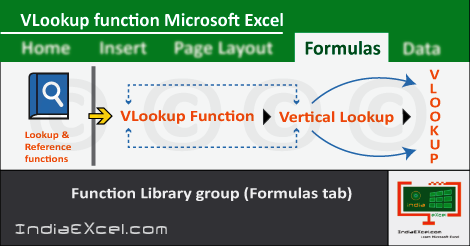
First of all, let us know, the Full Form of VLookup is Vertical Lookup. There are numerous situations, when we need to get our answers, from a column of a Table. And, we know that the orientation of a column is in the vertical direction. So, this is the reason for the Vertical Lookup.
VLookup function of Formulas tab MS Excel 2016 – continued
Now, for even more detailed clarification about the VLookup Function, let us assume an example. Suppose, we have a Table of three columns on the Left Hand Side in worksheet. And, when need to get the answer on the Right Hand Side column of this table. But, the results will come from another table, which is on the far right most hand side.
So, we’ll have to input or select the appropriate cells, according to the Syntax of the VLookup function.
Syntax: VLOOKUP(lookup_value,table_array,col_index_num,[range_lookup])
Syntax is the arrangement of words and phrases to create well-formed sentences in a language. And, the second meaning goes like this, the structure of statements in a computer language is Syntax. (Google Search).
Alright, let us understand what the above syntax means. Every syntax in Excel, have to be typed by the initial most alphabet of its name. In any cell, user need to firstly click and then start typing. Then a list pops up and accordingly by the first letter of the syntax. Next, we need to press the Tab key from the Keyboard.
This key is located at the left most upper corner side of the keyboard. After this key has been pressed, next the user needs to select or input the locations for the parameters. For this post, these are lookup_value, table_array, col_index_num and the range_lookup.
VLookup function of Formulas tab Microsoft Excel 2016
Firstly, the Lookup Value is the cell having the value on the left side of column. This is just adjacent to the right column that is empty. Next, for the Table Array, select the table from which we need get our results from. Further, the Column Index Number is the cell of right most column of the Table Array in selection.
And, finally the Range Lookup has further two options i.e. TRUE or FALSE. The True stands for Approximate Match and False is for Exact Match. Users can only choose only one out of these two. These options then provide the result based on the selection of True or False for the Column Index Number value.
Lastly, the Column of the Table Array must be sorted previously. Because, the results may get varied, or could be incorrect, in case of numerical data. So, to get the best results, it is important to do so. Overall, the VLookup Function is one of the most important functions in Microsoft Excel.
See Next Post: HLookup function Lookup & Reference Microsoft Excel 2016
Author:SPiyush
Leave a Reply Cancel reply
STAY UPDATED
RECENT POSTS
File tab Backstage View buttons introduction Microsoft Excel 2016
File tab Backstage View tools MS Excel 2016 In this post,...
Add numbers addition Microsoft Excel 2016 (adding in excel)
How to Add numbers (adding numeric) MS Excel See Previous...
Using Format Painter tool button Microsoft Excel 2016
How to use Format Painter button MS Excel See Previous...
Clipboard group Cut Copy and Paste Microsoft Excel 2016

Cut Copy Paste Clipboard group MS Excel 2016 See Previous...
Description of Font group buttons tools MS Excel 2016
Overview of Font group buttons Excel 2016 See Previous Post: Clipboard...
Alignment group tools buttons Microsoft Excel 2016

Commands of Alignment group Excel 2016 See Previous Post: Font group...
Number group buttons tools Formats Microsoft Excel
Number group tools commands Excel 2016 See Previous Post: Alignment Group...
Styles group buttons Home tab Microsoft Excel 2016

Styles group tools Microsoft Excel 2016 See Previous Post: Number group buttons commands...

Cells group tools description Home tab MS Excel 2016
Cells group buttons overview Microsoft Excel See Previous Post: Styles group...
Editing group buttons Home tab Microsoft Excel 2016
Editing group commands Microsoft Excel See Previous Post: Cells group buttons...
Clipboard, Font, Alignment, Number, Styles, Cells, Editing groups Microsoft Excel
Home tab groups buttons Microsoft Excel 2016 See Previous Post: Editing...
Tables group buttons Insert Tab ribbon Microsoft Excel
Insert Tab tools of Tables group Excel 2016 See Previous...
Illustrations group buttons of Insert Tab Excel 2016
Illustrations group tools Microsoft Excel 2016 See Previous Post: Tables group buttons...
File tab Backstage View buttons introduction Microsoft Excel 2016
File tab Backstage View tools MS Excel 2016 In this post,...
Add numbers addition Microsoft Excel 2016 (adding in excel)
How to Add numbers (adding numeric) MS Excel See Previous...
Using Format Painter tool button Microsoft Excel 2016
How to use Format Painter button MS Excel See Previous...
Clipboard group Cut Copy and Paste Microsoft Excel 2016
Cut Copy Paste Clipboard group MS Excel 2016 See Previous...
Description of Font group buttons tools MS Excel 2016
Overview of Font group buttons Excel 2016 See Previous Post: Clipboard...
Alignment group tools buttons Microsoft Excel 2016
Commands of Alignment group Excel 2016 See Previous Post: Font group...
Number group buttons tools Formats Microsoft Excel
Number group tools commands Excel 2016 See Previous Post: Alignment Group...
Styles group buttons Home tab Microsoft Excel 2016
Styles group tools Microsoft Excel 2016 See Previous Post: Number group buttons commands...
Cells group tools description Home tab MS Excel 2016
Cells group buttons overview Microsoft Excel See Previous Post: Styles group...
Editing group buttons Home tab Microsoft Excel 2016
Editing group commands Microsoft Excel See Previous Post: Cells group buttons...
Clipboard, Font, Alignment, Number, Styles, Cells, Editing groups Microsoft Excel
Home tab groups buttons Microsoft Excel 2016 See Previous Post: Editing...
Tables group buttons Insert Tab ribbon Microsoft Excel
Insert Tab tools of Tables group Excel 2016 See Previous...
Illustrations group buttons of Insert Tab Excel 2016
Illustrations group tools Microsoft Excel 2016 See Previous Post: Tables group buttons...











