
Microsoft Excel Posts & Guides
Microsoft Excel vs Google Sheets: Choosing the Right Data Engine

Previous post: The Enterprise Guide to Excel Table Design Tab: Streamlining Financial Models
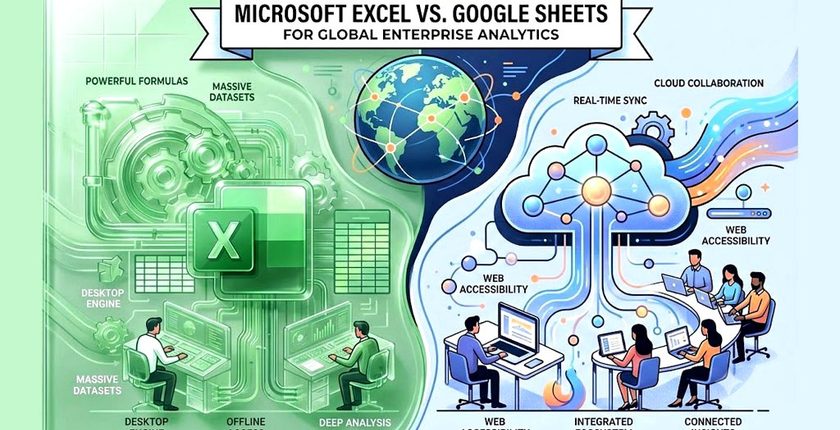
Excel vs Google Sheets, selecting between Microsoft Excel and Google Sheets is no longer a simple software preference. For data analytics teams across international hubs—such as Hong Kong, Tel Aviv, Stockholm, Brussels, and Auckland—it represents a multi-million dollar structural infrastructure decision.
Both platforms manipulate columns and data grids, but their underlying architectures serve fundamentally distinct corporate requirements. Deciding which platform to deploy determines whether your analytics engine runs smoothly or bottlenecks during high-stakes financial quarters.
📊 The Scalability Divide: Processing Massive Corporate Datasets
Local desktop computing power remains Microsoft Excel’s defining enterprise advantage. Consider a multinational financial services firm in Tel Aviv building a complex twenty-year valuation model.
This operation requires processing 800,000 inventory rows running nested XLOOKUP arrays, heavy formatting, and cross-sheet dependencies. Excel handles this workload locally, utilizing the workstation’s native hardware, RAM, and multi-threaded CPU processing seamlessly.
Conversely, Google Sheets operates entirely within a web browser window. If an operations manager in Stockholm attempts to execute deep calculations on a dataset exceeding five million cells, Sheets will experience severe performance lag or crash entirely. For handling massive data volume, complex calculations, and deep data modeling, Excel’s desktop engine remains completely unmatched.
🌐 The Collaboration Reality: Real-Time Cross-Border Workflows
While Excel dominates raw processing scale, Google Sheets wins the battle for cloud agility. Imagine a rapid logistics network coordinated from a regional office in Hong Kong. The operation requires rolling inventory status updates submitted by distinct terminal managers located in Auckland, Brussels, and Stockholm simultaneously.
Google Sheets handles this multi-user challenge natively with zero lag, providing real-time cursor tracking, automated background saving, and interactive team comment threads. Microsoft Excel has closed this gap through cloud deployments via OneDrive and SharePoint.
However, it still experiences file-syncing conflicts or version forks when multiple analysts try to modify overlapping formulas in the same spreadsheet block concurrently. Sheets eliminates this friction by keeping teams inside a single cloud asset.
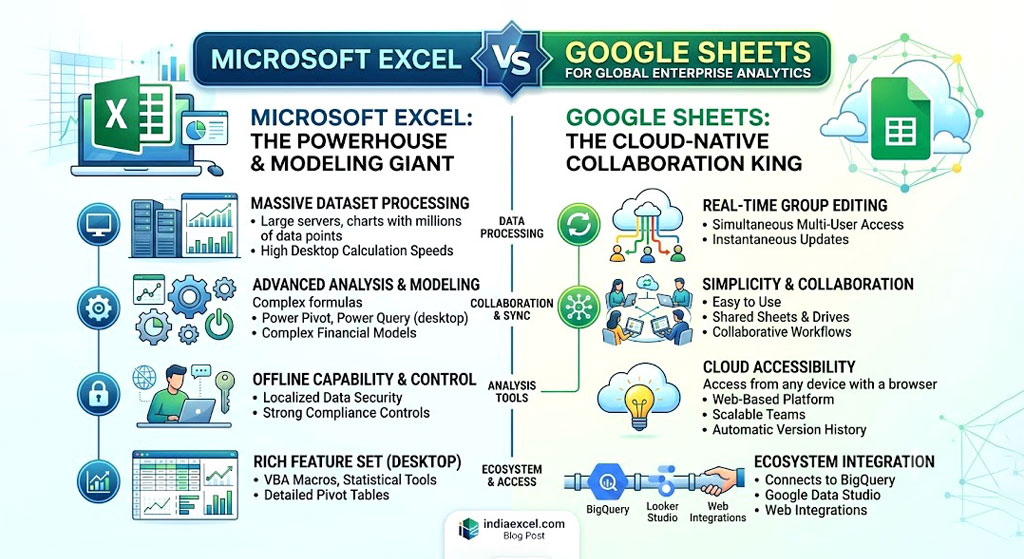
🛠️ Enterprise Workspace Comparison Matrix (Microsoft Excel vs. Google Sheets)
| Capability | Microsoft Excel Desktop Engine | Google Sheets Cloud Native |
| Data Processing Ceiling | Supports 1,048,576 rows per sheet locally with zero lag. | Limits workbooks to 10 million cells, causing browser lag under load. |
| Co-Editing Systems | Utilizes syncing via OneDrive, occasionally creating file conflicts. | Built with native, real-time multi-user editing and tracking. |
| Automation Options | Driven by advanced VBA macros and localized Power Query systems. | Powered by JavaScript Apps Script and cloud API integrations. |
| Security Architecture | Features local network isolation and hardware-level file encryption. | Dependent on cloud permissions and Google Workspace controls. |
🔐 The Security and Compliance Equation
For financial institutions operating within Brussels or cybersecurity startups based out of Tel Aviv, regulatory compliance and data governance are non-negotiable. Excel allows companies to lock spreadsheets completely inside firewalled local network drives, isolating sensitive intelligence from public web threats.
Google Sheets hosts all active pipelines on external cloud infrastructure, which requires administrators to maintain strict access policies to prevent unintentional external link sharing.
🏁 Microsoft Excel vs. Google Sheets: The Ultimate Enterprise Blueprint
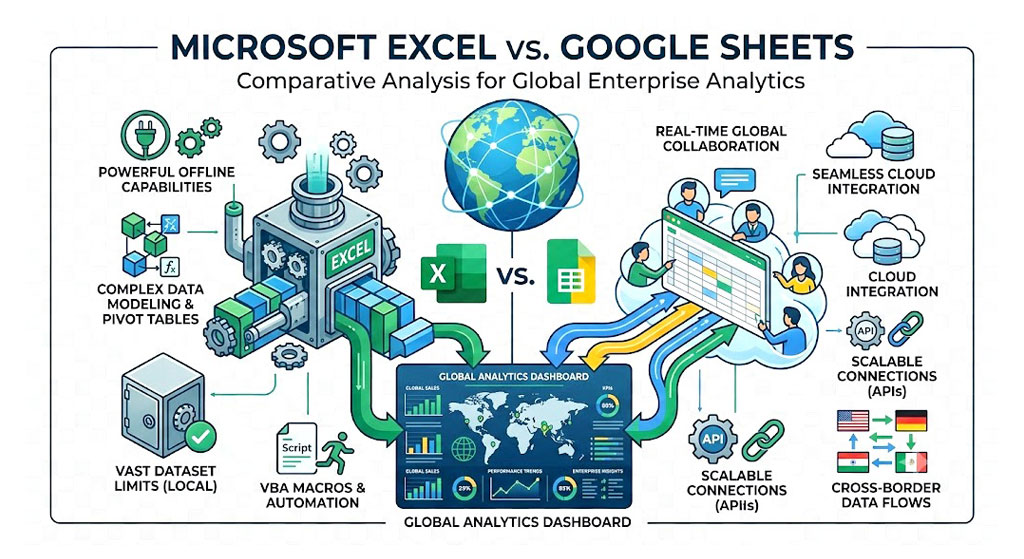
- Choosing Microsoft Excel transforms high-volume, isolated corporate reporting into a highly secure, lightning-fast computing asset.
- Selecting Google Sheets eliminates version control bottlenecks, opening up rapid cross-border communication lines for agile operations.
- Aligning your workspace with the appropriate tool reduces data errors, maximizes team output, and protects analytical workflows.
See Next Post: Guide to the Excel Picture Format Tab: Designing Executive Dashboards for Corporates
















