
Microsoft Excel Posts & Guides
Guide to Microsoft Excel Picture Format Tab

Previous post: Microsoft Excel vs Google Sheets for Global Enterprise Analytics: Choosing the Right Data Engine
Guide on Excel Picture Format Tab: Designing
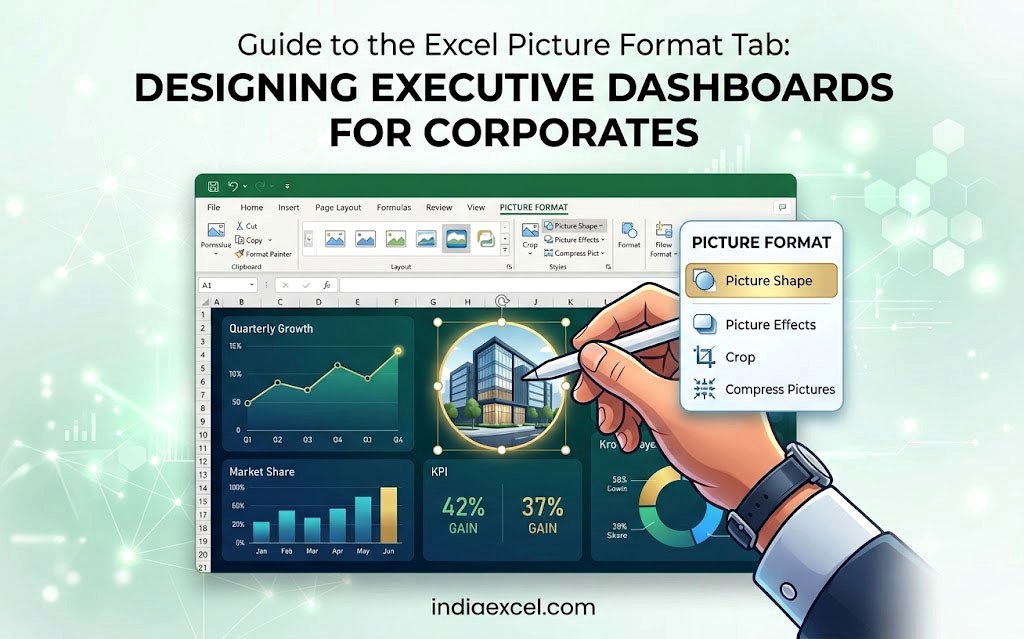
This post is a guide to the Excel Picture Format Tab: Designing Executive Dashboards for Corporates. In fast-paced corporate environments across Tier-1 financial hubs like New York, London, and Tokyo, as well as rapidly expanding Tier-2 business sectors in Warsaw, Mumbai, and São Paulo, presenting raw numerical data is only half the battle. To truly capture executive attention, data must be packaged into visually compelling, presentation-ready assets.
When you insert an image, corporate logo, or screenshot into Microsoft Excel, the contextual Picture Format Tab (formerly Picture Tools) automatically unlocks. This menu serves as an essential design studio for optimizing data visuals, standardizing report aesthetics, and ensuring file efficiency.
This example-driven playbook outlines the core functional groups within the Picture Format Tab to help your cross-border teams build elite, boardroom-ready dashboards.
Guide about Excel Picture Format Tab: Designing Dashboards
🎨 1. The Adjust Group
The Adjust Group fine-tunes the visual clarity of your imported assets and manages your file overhead.
- Core Functions: Remove Background, Corrections (Brightness/Contrast), Color, Artistic Effects, and Compress Pictures.
- Global Business Example: A marketing analyst in Mumbai imports high-resolution product images into an inventory tracker. Before sharing the report with executives in London, they use Compress Pictures to shrink the project file size from 45MB to under 2MB. This ensures the attachment sends instantly and opens seamlessly across international networks without causing Excel to freeze.
📐 2. The Picture Styles Group
This layout suite allows you to apply uniform structural borders, shadows, and geometric boundaries to raw screenshots.
- Core Functions: Picture Styles Gallery, Picture Border, Picture Effects, and Picture Layout.
- Global Business Example: A project management office (PMO) director in Warsaw compiles a performance review sheet. They use Picture Layout to instantly convert a loose list of team headshots into an organized, smart-graphic organizational chart that perfectly matches the company’s corporate branding.
📝 3. The Accessibility Group
This critical section ensures your enterprise resources comply with international digital accessibility regulations.
- Core Functions: Alt Text.
- Global Business Example: A compliance auditor in New York adds descriptive Alt Text (e.g., “Q3 Regional Sales Performance Bar Chart Screen Capture”) to all embedded dashboard diagrams. This allows screen-reading software utilized by visually impaired stakeholders to parse the asset correctly during global corporate audits.
🔄 4. The Arrange Group
This section manages the depth, alignment, and layering configuration of multiple overlapping images or shape elements.
- Core Functions: Bring Forward, Send Backward, Selection Pane, Align, and Group.
- Global Business Example: A logistics manager in São Paulo builds a physical warehouse layout grid within an Excel worksheet. They use the Align dropdown to perfectly snap multiple vector icons into a straight, mathematically precise row, then lock them together using Group to prevent shifts occured inadvertently when regional teams filter the dataset.
✂️ 5. The Size Group
This module manages the exact dimensional footprint of your images down to the fraction of an inch or centimeter.
- Core Functions: Crop (Crop to Shape, Aspect Ratio), Height, and Width.
- Global Business Example: A financial consultant in Tokyo captures several software UI snapshots for an operations manual. They use Crop to Shape to cleanly round off the rough corners of the images, maintaining an identical 16:9 Aspect Ratio across every technical page to ensure visual consistency throughout the documentation.
🛠️ Microsoft Excel Picture Tools: The Ultimate Design Blueprint (Guide about Excel Picture Format Tab)
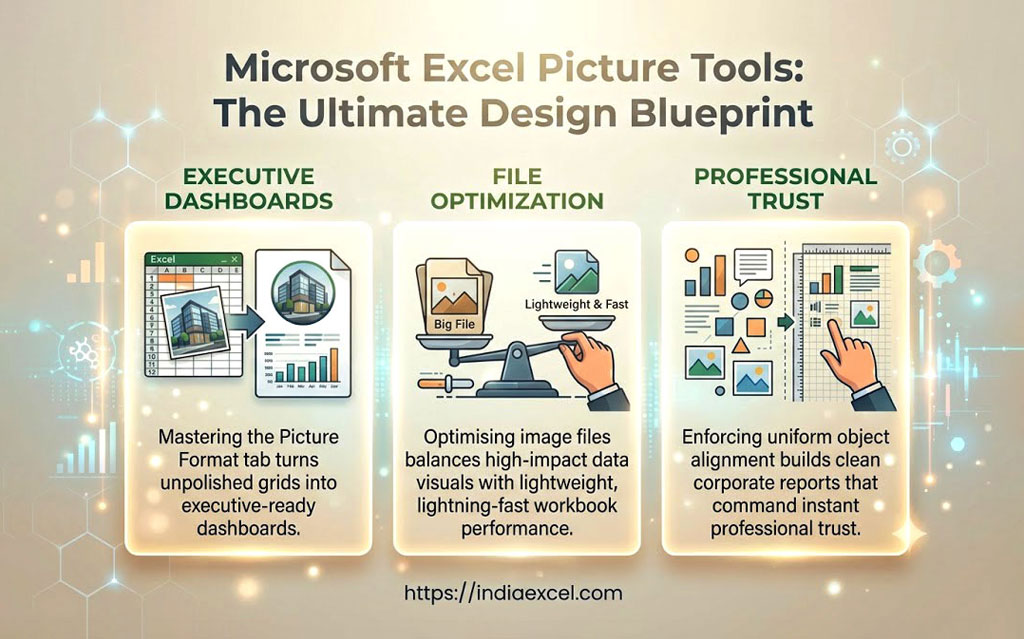
- Mastering the Picture Format tab turns cluttered, unpolished grids into executive-ready dashboards.
- Optimising image files balances high-impact data visuals with lightweight, lightning-fast workbook performance.
- Enforcing uniform object alignment builds clean corporate reports that command instant professional trust.
















