
Microsoft Excel Posts & Guides
Previous post: How to Use Data Validation in Excel (Create Dropdowns Restrict Inputs)
When merging client databases, importing inventory lists, or combining multiple sales reports, duplicate data rows are an inevitable corporate nightmare. Double entries warp your financial calculations, skew your charts, and throw off your Pivot Table totals.
Fortunately, Microsoft Excel features a native Remove Duplicates tool tucked inside the Data Tools group on your Data tab. This feature allows you to scan an entire spreadsheet range and delete identical entries in seconds.
In this tutorial, you will learn the exact steps to clear duplicate records, how to isolate unique rows while preserving your core files, and a vital configuration rule to prevent accidental data loss.
⚠️ The Golden Rule: Create a Backup First
The Remove Duplicates tool permanently deletes data from your active worksheet range. It does not simply hide rows like a temporary filter. Before you click anything, always right-click your sheet tab at the bottom of your window, select Move or Copy, and check Create a copy. This ensures you always have a fallback file if you delete something by mistake.
Method 1: Removing Duplicates Across the Entire Table
If you have logged an entire transaction or customer profile twice across all fields (meaning the client shared an identical Name, Email, and Phone number), follow these steps:
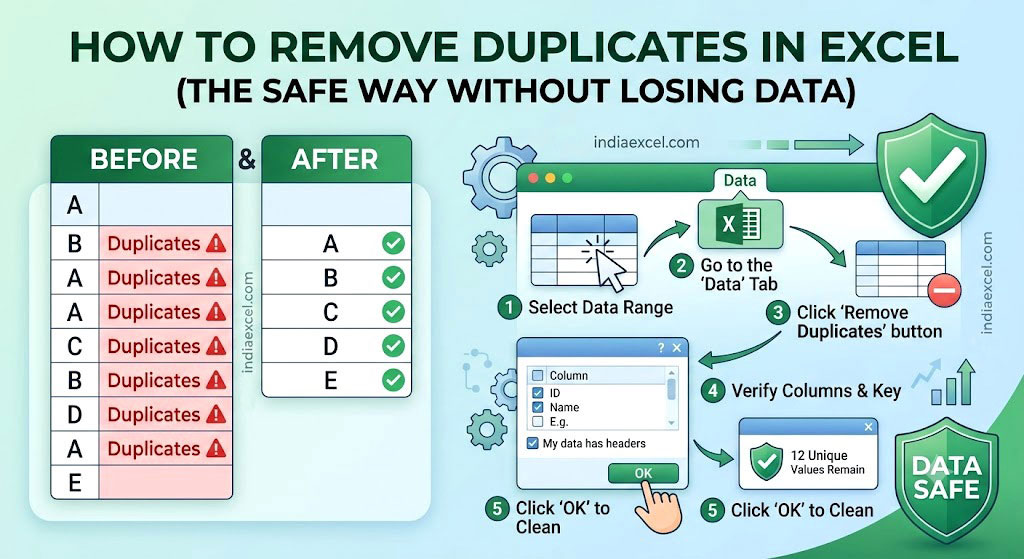
- Click any single cell inside your main data table range.
- Go to the Data tab on your top Ribbon.
- Look inside the Data Tools group and click the Remove Duplicates button.
- A popup window will appear. Make sure the box for “My data has headers” is checked at the top right so your titles don’t get deleted.
- Click Select All so every column has a checkmark next to it.
- Click OK
Excel will process the table, delete the repeating rows, and pop up a summary alert box showing exactly how many duplicate values were destroyed and how many unique entries remain.
Method 2: Removing Duplicates Based on a Single Column
Sometimes, you only want to filter unique values based on one specific identifier—for example, pulling a clean list of unique city names or distinct client IDs, regardless of their transaction dates.
- Highlight or select your target data block.
- Go to Data Tab > Data Tools Group and click Remove Duplicates.
- In the column selection menu, click the Unselect All button on the right side.
- Check only the box for the specific column you want to filter (e.g., check Client Email).
- Click OK.
💡 Pro Tip: Extract Unique Values Without Deleting the Source
If your corporate team needs to keep the main messy file intact but wants a quick list of unique entries copied to a clean column on the side, use the modern UNIQUE array formula instead:
excel
=UNIQUE(A2:A100)
Simply type this formula into an empty cell, press Enter. Excel will instantly spill out a dynamic list of completely unique entries without changing your original data structure.
❓ Frequently Asked Questions (FAQ)
Why is the Remove Duplicates button grayed out?
If you notice that you aren’t able to click the button, a protected worksheet or restricted access rights are likely causing the issue. Go to the Review tab and check if the Unprotect Sheet option is visible. Alternatively, if you are actively editing or typing inside a cell, Excel freezes formatting tools; hit Enter to exit edit mode and try again.
See Next Post: How to Create a Macro in Excel (Step-by-Step VBA Automation Guide)




[…] Previous post: How to Remove Duplicates in Excel (The Safe Way Without Losing Data) […]