
Microsoft Excel Posts & Guides
Use AutoSum in Excel (The Quickest Way to Total Data)
Previous post: How to Combine First and Last Names in Excel (CONCATENATE & Ampersand Guide)
When you need to total a long list of numbers in Microsoft Excel, manually typing out =SUM(A1:A50) over and over again slows you down.
Fortunately, Excel features a built-in shortcut called the AutoSum button. With just a single click—or a lightning-fast keyboard shortcut—Excel automatically reads your spreadsheet layout, detects your rows or columns of data, and writes the entire formula for you.
In this step-by-step tutorial, you will learn exactly how to use AutoSum, where to find it on your dashboard, and the secret keyboard shortcut that top financial analysts use to save time.
Where is the AutoSum Button in Excel?
Microsoft provides two easy ways to access this tool directly from your top Ribbon toolbar:
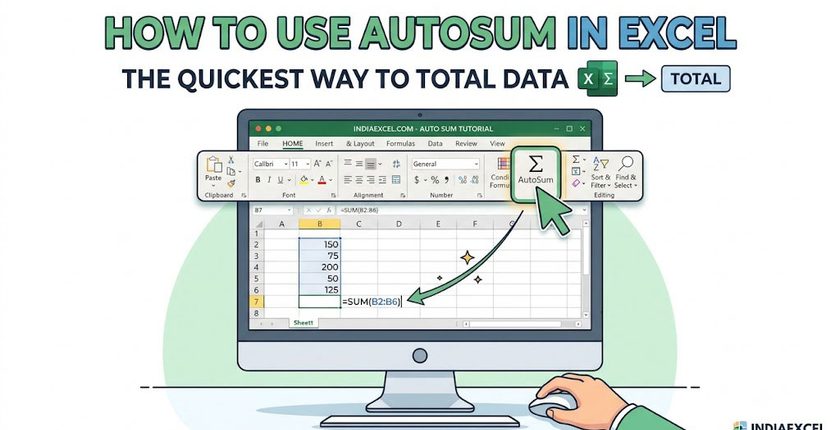
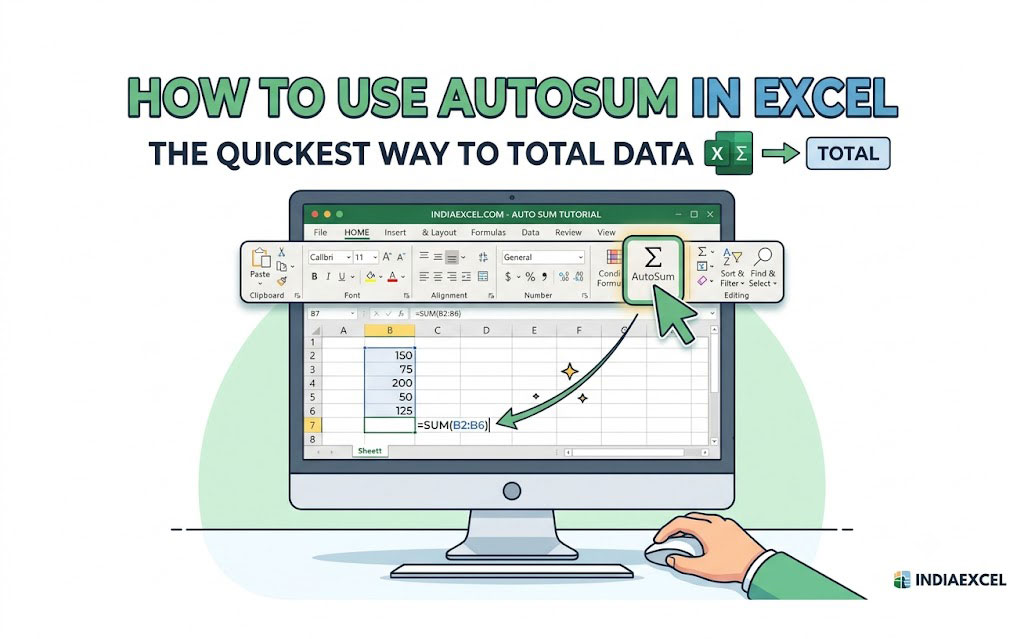
- The Home Tab: Go to the Home tab, look all the way to the right side inside the Editing group, and click the Greek sigma symbol (∑ AutoSum).
- The Formulas Tab: Go to the Formulas tab and look inside the Function Library group on the far left. You will find the identical ∑ AutoSum button there.
Method 1: Using AutoSum for a Single Column or Row
To automatically sum up a clean vertical column of numbers, follow these quick steps:
- Step 1: Click on the empty cell directly below the last number in your column.
- Step 2: Click the AutoSum button on your Home toolbar.
- Step 3: Excel will highlight your data with a blinking marquee outline and automatically insert the formula:
excel
=SUM(A2:A10)
- Step 4: Press Enter on your keyboard to lock in your total.
Note: You can use this exact same process to sum a horizontal row of numbers by clicking into the empty cell directly to the right of your final data entry.
Method 2: The Secret AutoSum Keyboard Shortcut
If you want to skip navigating through menu options entirely, you can activate AutoSum using a simple keyboard combination:
- Windows Shortcut: Press and hold Alt and then press the equals sign (=).
- Mac Shortcut: Press and hold Command + Shift + T
How to use it instantly:
Simply highlight your entire data column plus one extra blank cell at the bottom, then press Alt + =. The total will populate instantly without you ever having to click your mouse.
⚠️ Common Troubleshooting Errors with AutoSum
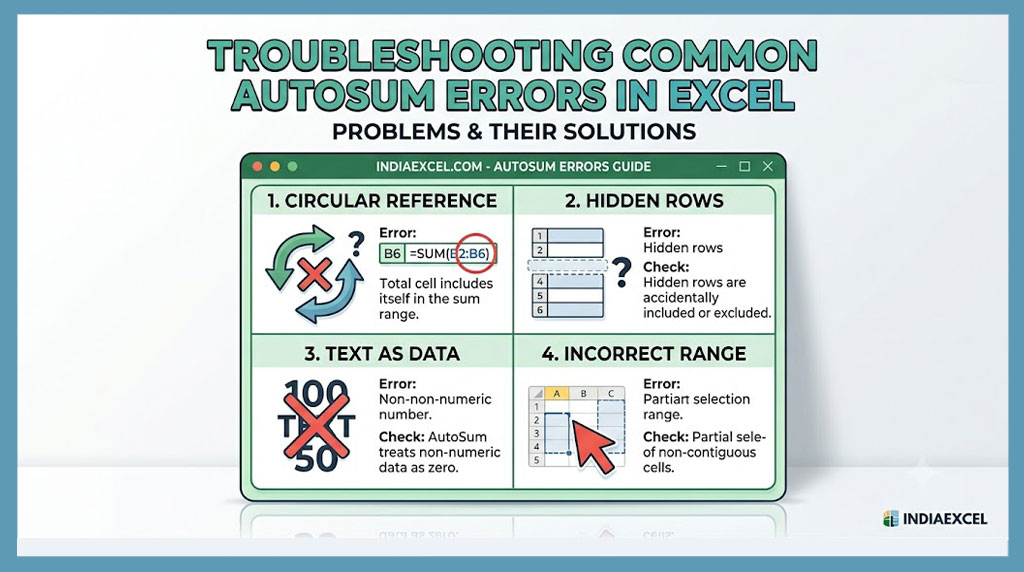
Sometimes AutoSum behaves unexpectedly. If your formula returns a zero or cuts off halfway, check for these two common formatting roadblocks:
1. Hidden Blank Rows
The AutoSum algorithm is designed to stop scanning the moment it hits a completely blank cell. If you have an empty row in the middle of your invoice list, AutoSum will only total the numbers below that blank space. To fix this, manually click and drag the blinking border box up to include your full data set before hitting Enter.
2. Numbers Formatted as Text
If you imported data from an external corporate database or accounting software, your numbers might be locked in text format. Excel cannot add text characters together, causing AutoSum to spit out a frustrating $0.00 total. Look for small green triangles in the corners of your data cells, highlight them, and click the warning icon to select “Convert to Number”.
❓ Frequently Asked Questions (FAQ)
Can AutoSum perform other math calculations besides adding?
Yes. If you click the tiny drop-down arrow right next to the AutoSum text on your toolbar, you can instantly change the function to calculate the Average, count the total items (Count Numbers), or display the highest (Max) or lowest (Min) value in your spreadsheet range.
See Next Post: How to Wrap Text in Excel (Fix Text Overflow Instantly)
















