
Microsoft Excel Posts & Guides
Combine First and Last Names in Excel (CONCATENATE & Ampersand Guide)


Previous post: Microsoft Excel or Microsoft Word: The Battle for Better Tabular Data
Have you ever imported a client list into Microsoft Excel only to find that the first names and last names are stuck in completely separate columns?
Manually retyping hundreds of full names is a massive waste of time. Excel provides two incredibly fast ways to merge text from multiple cells into one: the CONCATENATE function and the Ampersand (&) operator.
In this step-by-step tutorial, you will learn exactly how to use both methods and how to safely handle spaces so your data looks clean and professional.
Method 1: Combining Text Using the Ampersand (&) Operator
The absolute easiest and most common way to join strings in Microsoft Excel is by using the Ampersand (&) symbol. Think of it as a glue icon that sticks text together.
The Formula Syntax:
=Cell1 & " " & Cell2
Step-by-Step Example:
Let’s say your user’s First Name is in cell A2 (John) and their Last Name is in cell B2 (Smith).
1. Click on the empty cell where you want the full name to appear (Cell C2).
2. Type the following exact formula:
excel
=A2 & " " & B2.
3. Press Enter.
Why the " " matters: If you only type =A2 & B2, Excel will output JohnSmith without a space. Putting a space inside double quotation marks tells Excel to add a blank character between the names.
Method 2: Using the Built-In CONCATENATE Function
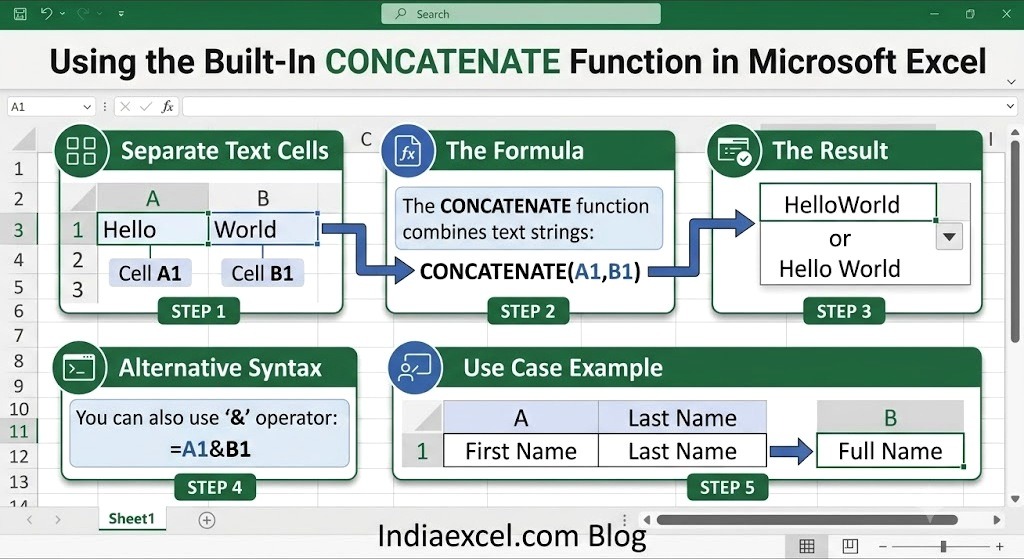
If you prefer using standard Excel formulas instead of symbols, the CONCATENATE function found inside the Formulas Tab ribbon achieves the exact same result.
The Formula Syntax:
=CONCATENATE(Text1, " ", Text2)
Step-by-Step Example:
Using our same spreadsheet setup where A2 holds the first name and B2 holds the last name:
1. Select cell C2 and enter this formula:
excel
=CONCATENATE(A2, " ", B2)
2. Press Enter.
3. Hover your mouse over the bottom-right corner of cell C2 until a small black cross icon appears (the Fill Handle). Double-click it to automatically copy the formula down your entire list.
💡 Pro Tip: Combining Text from 3 or More Cells
You aren’t limited to just two columns. You can string together as many data fields as you need by continually adding your delimiters. For example, if you are organizing legal files or specialized corporate indices across three columns (Company, Specialty, Type), your syntax will adjust dynamically:
excel
=A2 & " " & B2 & " " & C2
- Example Output:
Alpha Law Firm
❓ Frequently Asked Questions (FAQ)
What is the difference between CONCAT, CONCATENATE, and TEXTJOIN?
- CONCATENATE: The classic legacy function available in all versions of Excel. It requires you to select every single cell individually.
- CONCAT: Introduced in newer versions to replace CONCATENATE. It allows you to select an entire range of cells (e.g.,
=CONCAT(A2:D2)) but does not let you add spaces between them. - TEXTJOIN: The most powerful modern text tool. It allows you to specify a delimiter (like a space or a comma) just once, and it will automatically apply it across a massive range of cells while skipping blanks.
See Next Post: How to Use AutoSum in Excel (The Quickest Way to Total Data)
















