Microsoft Excel Posts & Guides
Edit Custom Lists in Microsoft Excel
- December 25, 2024
- Posted by: SPiyush
- Category: Microsoft Excel Tips


Edit Custom Lists in Microsoft ExcelPrevious post: Sum Cells Text Numbers Microsoft Excel
What is Edit Custom Lists in Excel ?
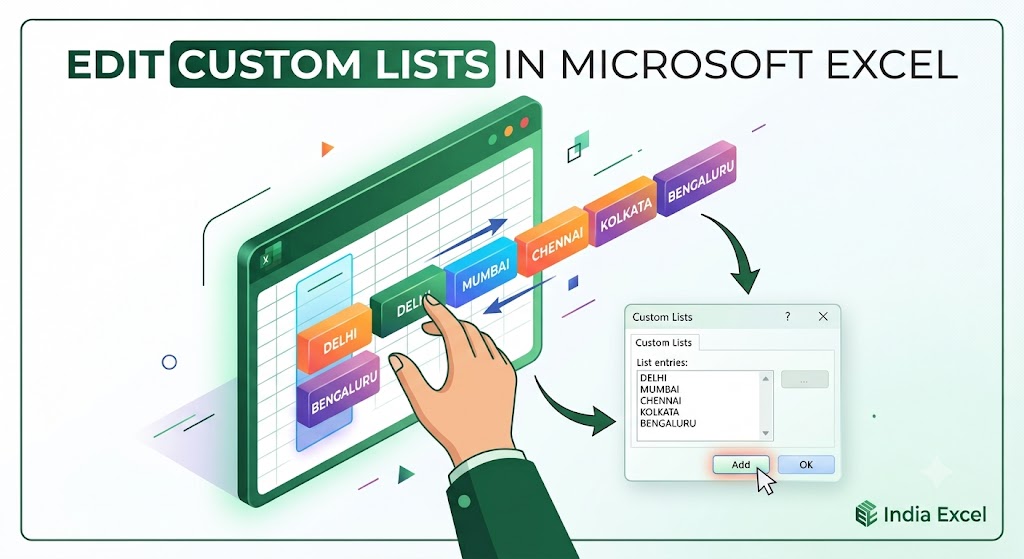
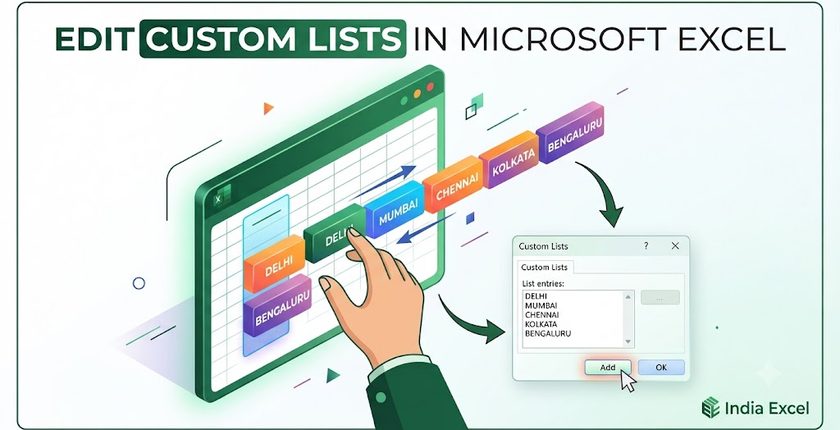
In Microsoft Excel “Edit Custom Lists…” is extremely powerful and helpful when we need to Create lists for use in sorts and fill sequences.
Where do you locate the Custom Lists button in Excel?
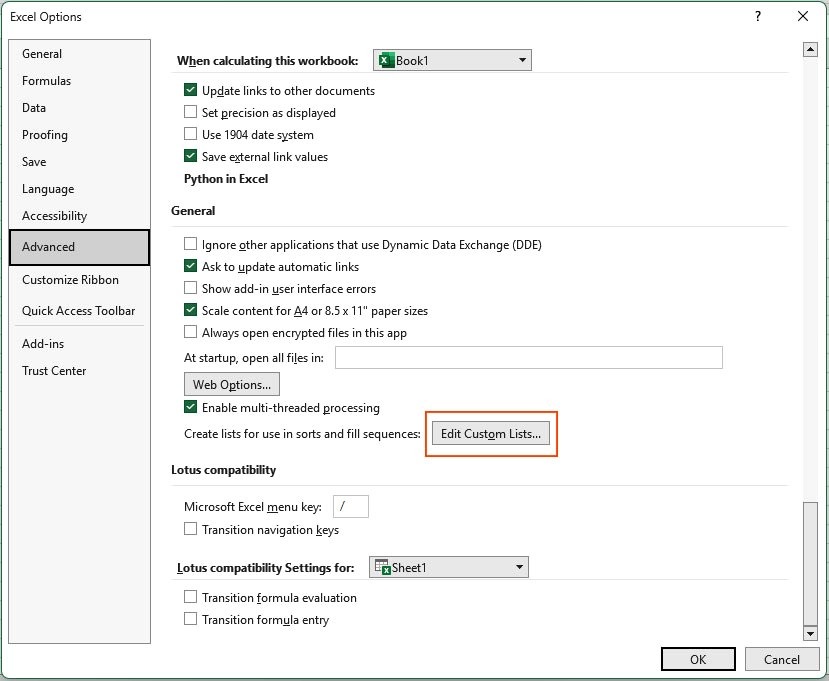
You can find this option in the Back Stage View. Navigate and find it by clicking File>Options>Excel Options Dialog Box Pop Up Window will open. Then Advanced>General section>Edit Custom Lists… button.
How do you use the Edit Custom Lists…. option in Excel?
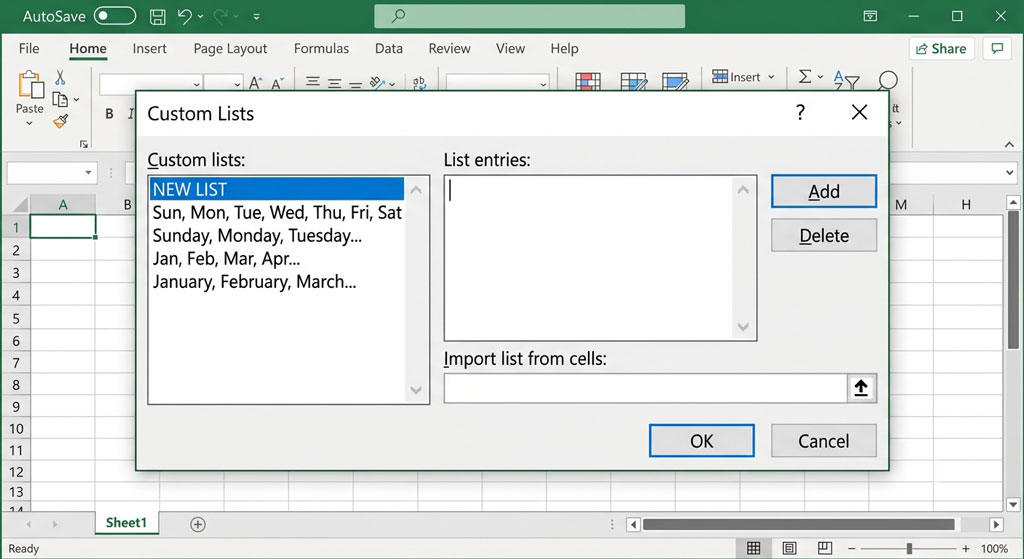
Alright, in Microsoft Excel, you basically use Custom Lists to insert texts, numbers, etc. inside the blank box area under the List entries option in the Custom List pop up windows box. We need to type the text and then click on the Add button. Excel fills the entry in the box.
Now again, you have to add all the other texts and numbers in the same manner. You can create a list of entries this way. Then Click on the OK button. And finally click on the last OK button once more under Excel Options pop up window.
Using Edit Custom Lists in Microsoft Excel Worksheet
- After creating a custom list entry in the Edit-Custom-Lists option, we just need to Type the First Entry Text of the list in any cell.
- Then move the arrow to the right below corner of the cell, when the arrow change to the Fill Handle (Black Color +) plus.
- Next, click and drag the corner of the cell. In this step, Excel automatically fills the entire list into the cells below.
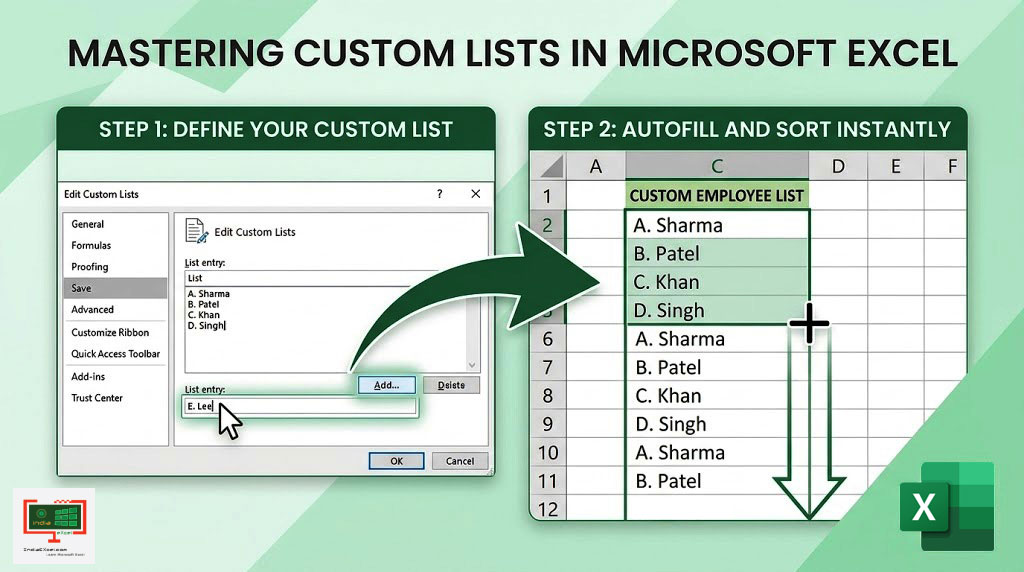
So, Edit Custom Lists button option is real time saver. We can create multiple list entries in the Custom Lists. It can come really handy in every day’s tedious tasks of typing.
If a small company has a limited staff, then typing the names of the Employee by using this Custom Lists will be quite awesome and quick. Also, if you make the list entries accurately, there will be no chance of typing mistakes.
See Next Post: Mastering Data Analysis with Microsoft Excel
Author:SPiyush
Leave a Reply Cancel reply
STAY UPDATED
RECENT POSTS
File tab Backstage View buttons introduction Microsoft Excel
File tab Backstage View tools Microsoft Excel Complete Guide to...
Add numbers addition Microsoft Excel (adding in excel)
How to Add numbers (adding numeric) Microsoft Excel See Previous...
Using Format Painter button Microsoft Excel
Format Painter tool in Microsoft Excel See Previous Post: Add numbers...
Clipboard group Cut Copy and Paste Microsoft Excel
Cut Copy Paste Clipboard group MS Excel 2016 See Previous...
Description of Font group buttons tools Microsoft Excel
Overview of Font group buttons Excel 2016 See Previous Post: Clipboard...
Alignment group tools buttons Microsoft Excel
Commands of Alignment group Excel 2016 See Previous Post: Font group...
Number group buttons tools Formats Microsoft Excel
Number group tools commands Excel 2016 See Previous Post: Alignment Group...
Styles group buttons of Home tab Microsoft Excel
Styles group tools Microsoft Excel 2016 See Previous Post: Number group buttons commands...
Cells group tools description Home tab Microsoft Excel
Cells group buttons overview Microsoft Excel See Previous Post: Styles group...
Editing group buttons Home tab Microsoft Excel
Editing group commands Microsoft Excel See Previous Post: Cells group buttons...
Clipboard, Font, Alignment, Number, Styles, Cells, Editing groups Microsoft Excel
Home tab groups buttons Microsoft Excel 2016 See Previous Post: Editing...
Tables group buttons Insert Tab ribbon Microsoft Excel
Insert Tab tools of Tables group Excel 2016 See Previous...
Illustrations group buttons of Insert Tab Microsoft Excel
Illustrations group tools Microsoft Excel 2016 See Previous Post: Tables group buttons...
File tab Backstage View buttons introduction Microsoft Excel
File tab Backstage View tools Microsoft Excel Complete Guide to...
Add numbers addition Microsoft Excel (adding in excel)
How to Add numbers (adding numeric) Microsoft Excel See Previous...
Using Format Painter button Microsoft Excel
Format Painter tool in Microsoft Excel See Previous Post: Add numbers...
Clipboard group Cut Copy and Paste Microsoft Excel
Cut Copy Paste Clipboard group MS Excel 2016 See Previous...
Description of Font group buttons tools Microsoft Excel
Overview of Font group buttons Excel 2016 See Previous Post: Clipboard...
Alignment group tools buttons Microsoft Excel
Commands of Alignment group Excel 2016 See Previous Post: Font group...
Number group buttons tools Formats Microsoft Excel
Number group tools commands Excel 2016 See Previous Post: Alignment Group...
Styles group buttons of Home tab Microsoft Excel
Styles group tools Microsoft Excel 2016 See Previous Post: Number group buttons commands...
Cells group tools description Home tab Microsoft Excel
Cells group buttons overview Microsoft Excel See Previous Post: Styles group...
Editing group buttons Home tab Microsoft Excel
Editing group commands Microsoft Excel See Previous Post: Cells group buttons...
Clipboard, Font, Alignment, Number, Styles, Cells, Editing groups Microsoft Excel
Home tab groups buttons Microsoft Excel 2016 See Previous Post: Editing...
Tables group buttons Insert Tab ribbon Microsoft Excel
Insert Tab tools of Tables group Excel 2016 See Previous...
Illustrations group buttons of Insert Tab Microsoft Excel
Illustrations group tools Microsoft Excel 2016 See Previous Post: Tables group buttons...